Setting up the system for the first time.
|
Step |
Description |
Task |
|
1 |
System Users |
|
|
|
|
|
|
2 |
Chassis |
|
|
|
|
|
|
|
|
|
|
3 |
Transactions & Billing |
|
|
|
|
Dashboard
The dashboard gives user a quick view of the operations.
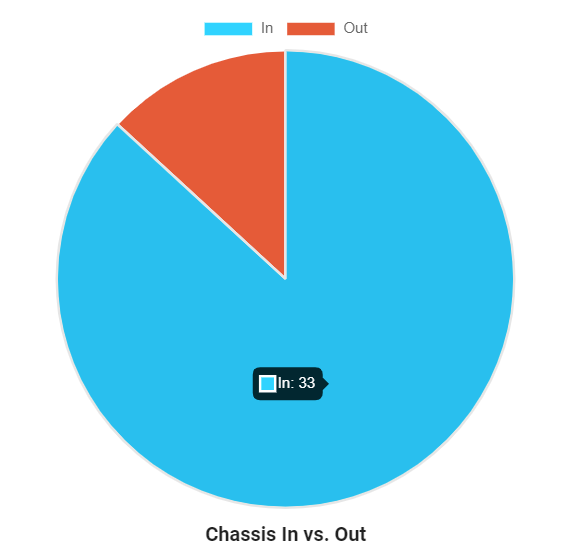
Chassis In vs. Out
In - Total number of chassis in the yards.
Out - Total number of chassis that is out with the clients.
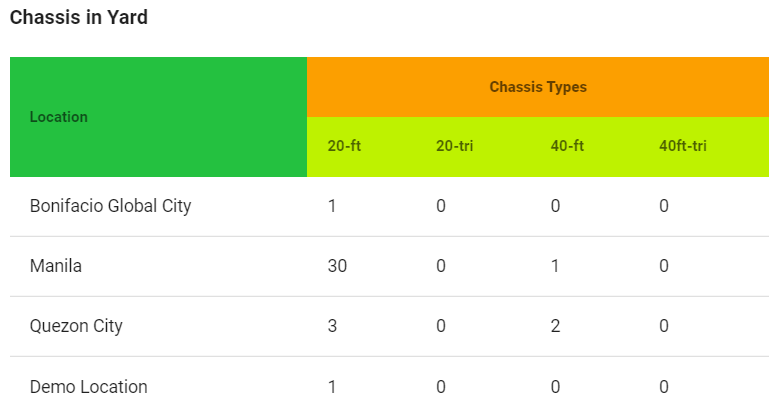
Chassis in Yard
Number of active chassis in yards by location and chassis type.
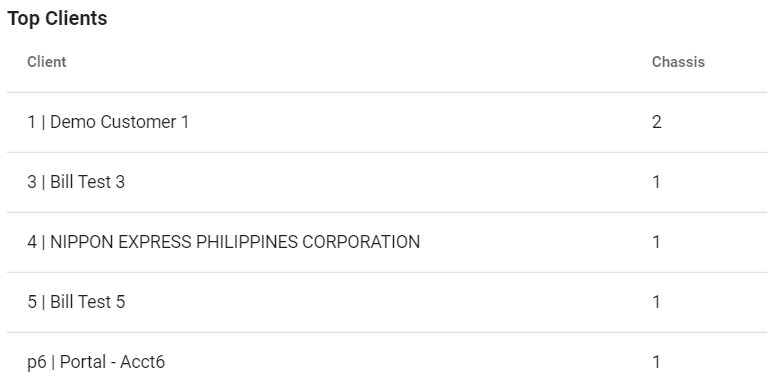
Top Clients
5 clients with the most number of rented chassis.
Receivables
5 clients with the highest amount of unpaid balances.
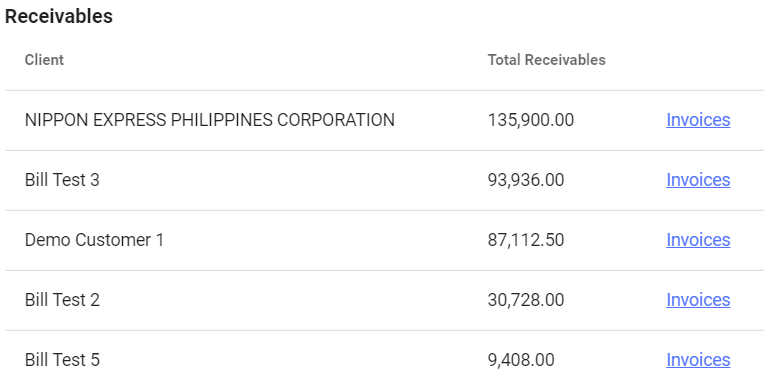
*Click "Invoices" to see a breakdown of the client's unpaid invoices.
User Groups
A User Group is like a department in the company. Give people access to the system features that would help them complete their tasks.
Master Group
● A “Master” group with full system access comes as a default.
● The “Master” group cannot be modified or deactivated.
Manage User Groups
- Create a User Group
- Change permissions of a User Group
- Activate or Deactivate a User Group
Create a User Group
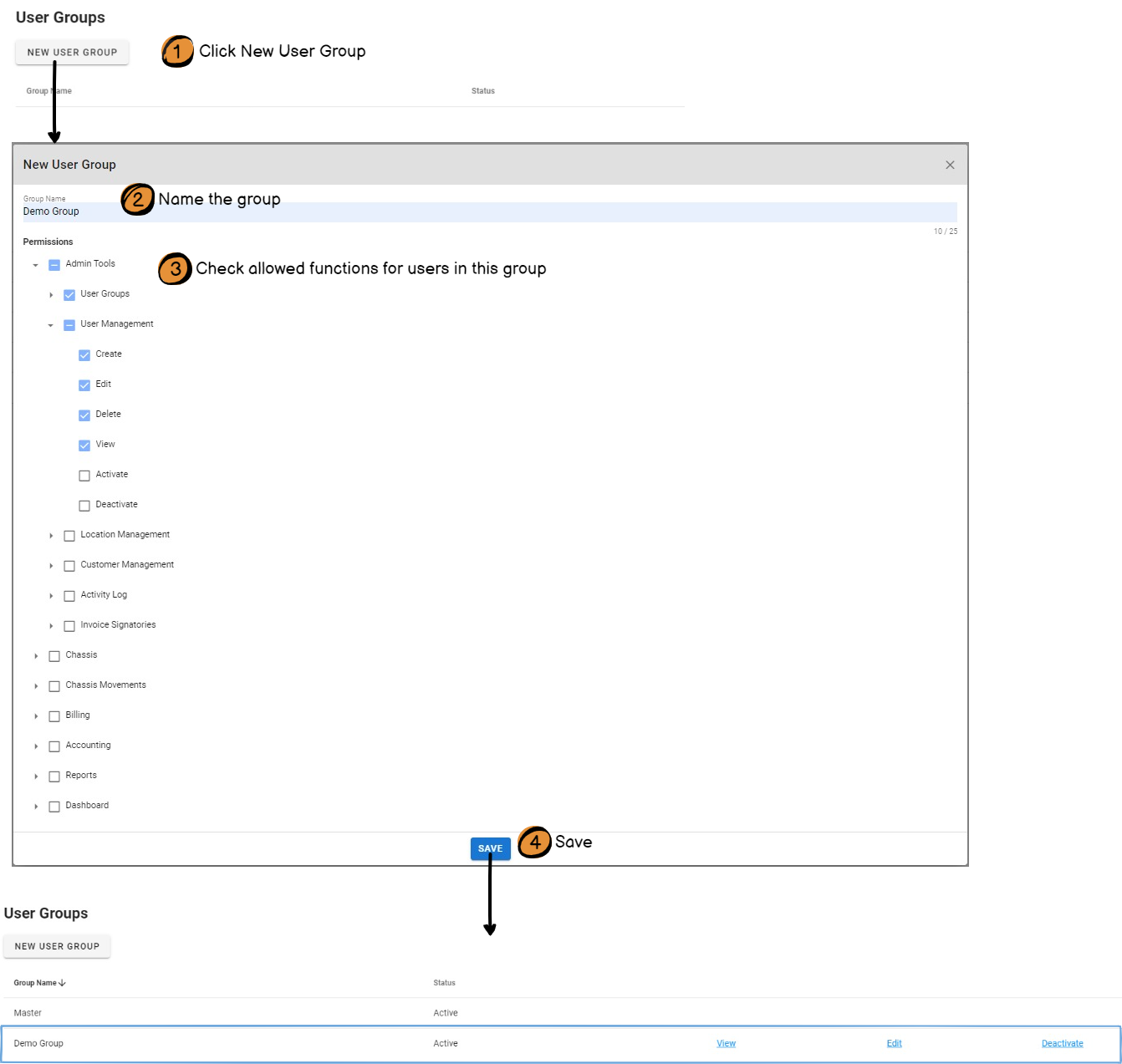
New User Group Form
|
Field |
Description |
|
Group Name |
Unique identifier of the user group. *Not editable after group is created. |
|
Permissions |
List of all modules and its specific functions. Check module/s or function/s that will be accessible to users in this new group. |
*Newly created User Groups are "Active" by default.
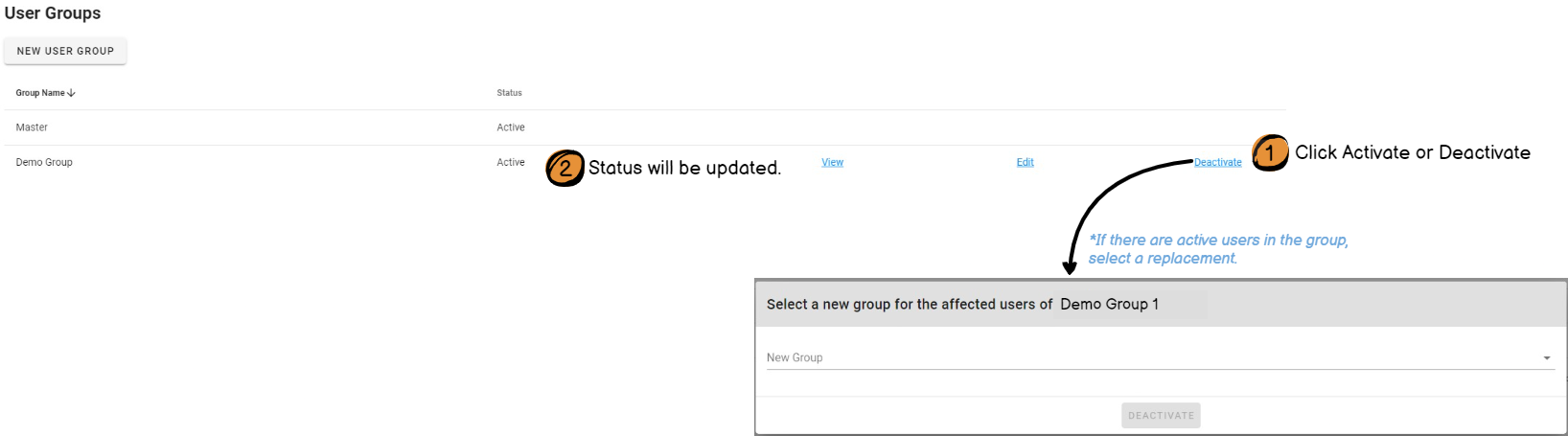
Activate/Deactivate User Group
Activate
Change the group's status to "Active" and assign users with it.
Deactivate
Change group's status to "Inactive" and it becomes unusable.
User Management
A User is an employee who will have access to the system.
Manage Users
- Create a User
- Update User record
- Activate or Deactivate a User
Create a User
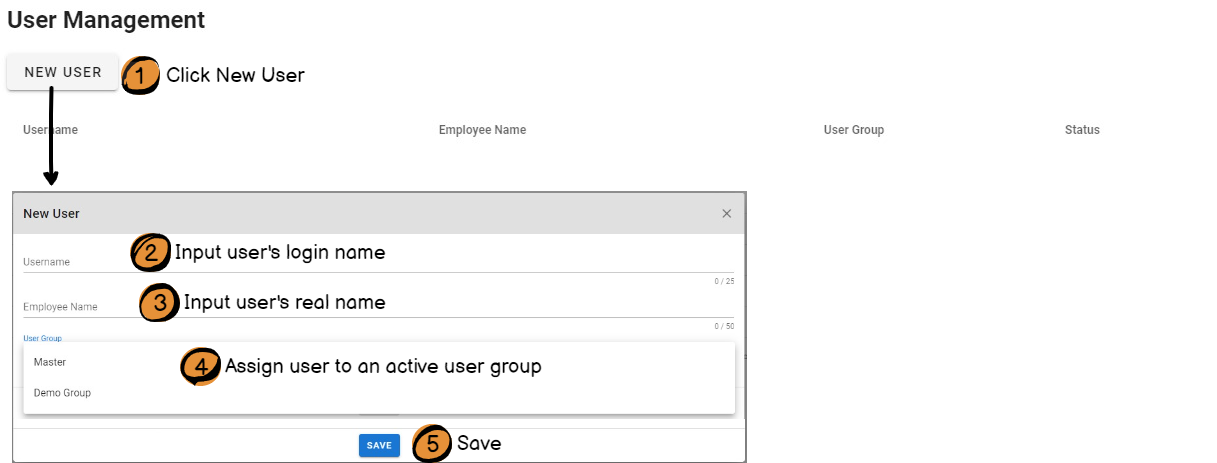
New User Form
|
Field |
Description |
|
Username |
Unique identifier of the user group. *Does not accept special characters. *Not editable after username is created. |
|
Employee Name |
List of all modules and its specific functions. Check module/s or function/s that will be accessible to users in this new group. |
|
User Group |
List of "Active" user groups. This will determine the modules and functions the user will have access to. |
*Newly created Users are "Active" by default.
*Default Password is "sprint".
Activate/Deactivate User
Activate
Change the user's status to "Active" so that employee can login the system.
Deactivate
Change user's status to "Inactive" and it becomes unusable.

Locations Management
A Location is where a depot or yard can be found.
Manage Locations
- Create a Location
- Update a Location record
- Activate or Deactivate a Location
Create a Location
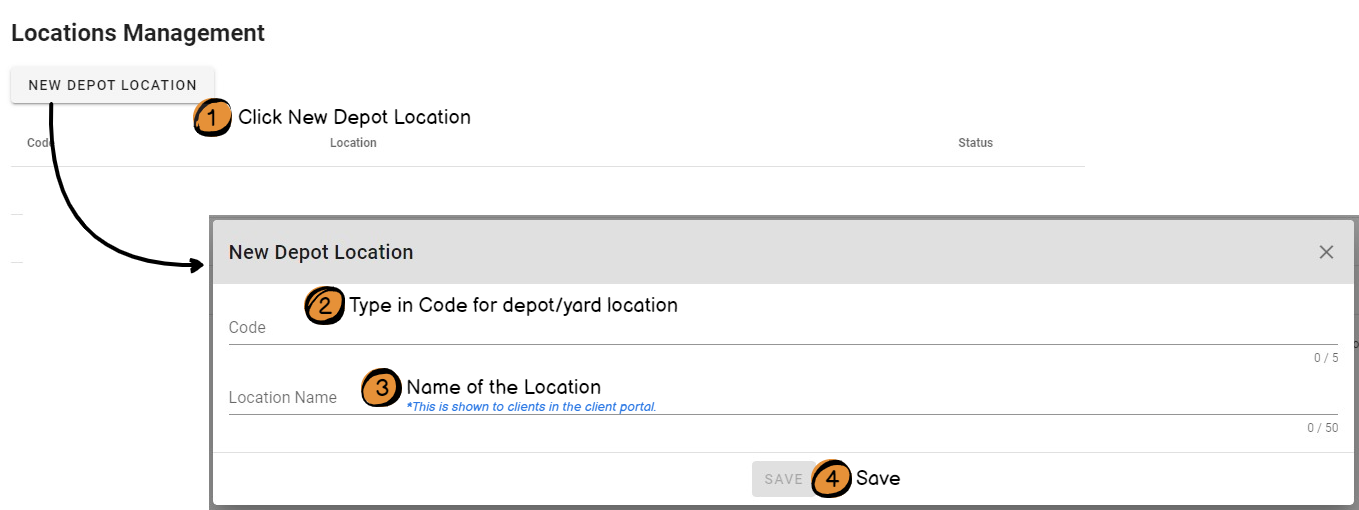
New Depot Location Form
|
Field |
Description |
|
Code |
5-letter unique identifier of the depot location. *Does not accept special characters. *Not editable after location is created. |
|
Location Name |
Name of depot location. *Does not accept special characters. *This is shown in the Client Portal's Chassis Lookup page. |
*Newly created Locations are "Active" by default.
Activate/Deactivate a Location
Activate
Change the location's status to "Active" so that chassis and EIR's can be tagged to it.
Deactivate
Change location's status to "Inactive" and it becomes unusable.

Client Management
A Client is a company's account when it rents or leases Sprint's chassis.
A company can have 1 or many related client records to differentiate accounts depending on its company's policies.
Manage Clients
- Create a Client record
- Activate or Deactivate a Client
- View list of Chassis with the client
- View list of client's completed transactions
- View list of client's invoices and its balances
Create a Client
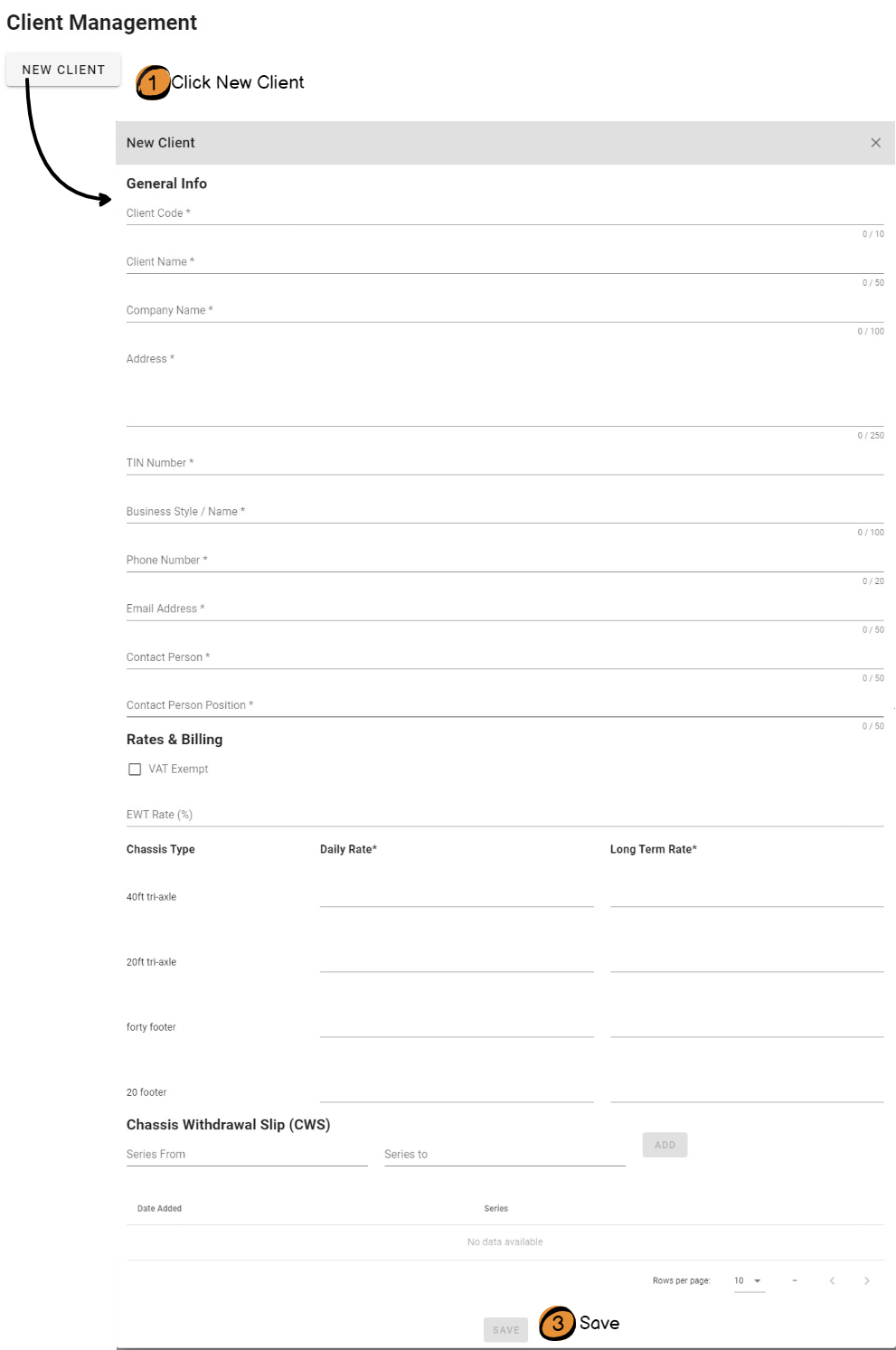
New Client Form
|
Field |
Description |
|
Client Code |
Unique identifier for the client. This is shown in the Client Portal for account identification. *Does not accept special characters. *Not editable after client record is created. |
|
Client Name |
Name for the client. This is shown in the Client Portal for account identification. *Does not accept special characters. |
|
Company Name |
Name of the client's company. This is used for printing of invoices. |
|
Address |
Address of the client's company. This is used for printing of invoices. |
|
TIN Number |
Client's tax identification number. This is used for printing of invoices. |
|
Business Style / Name |
Client's business style (shipping line, freight forwarder, etc) or Company Name. This is used for printing of invoices. |
|
Phone Number |
Client's phone number. |
|
Email Address |
Client's email address. |
|
Contact Person |
Person representing the client for account concerns. |
|
Contact Person Position |
Contact person's position in the client's company. |
|
VAT Exempt |
Check box if the client is exempted from paying VAT. *Do not check if client is not VAT exempt. |
|
EWT Rate (%) |
Rate for client's Expanded withholding tax. Type 2 if rate is 2% and 5 if 5%. |
|
Daily Rate |
Amount to charge the client per day. *Type rate for each chassis type. |
|
Long Term Rate |
Amount to charge the client per day for long term rentals. *Type rate for each chassis type. |
|
Chassis Withdrawal Slip |
(Optional) Record the series of CWS slips issued to the client. Type number of first and last slip to add. |
*Newly created Clients are "Active" by default.
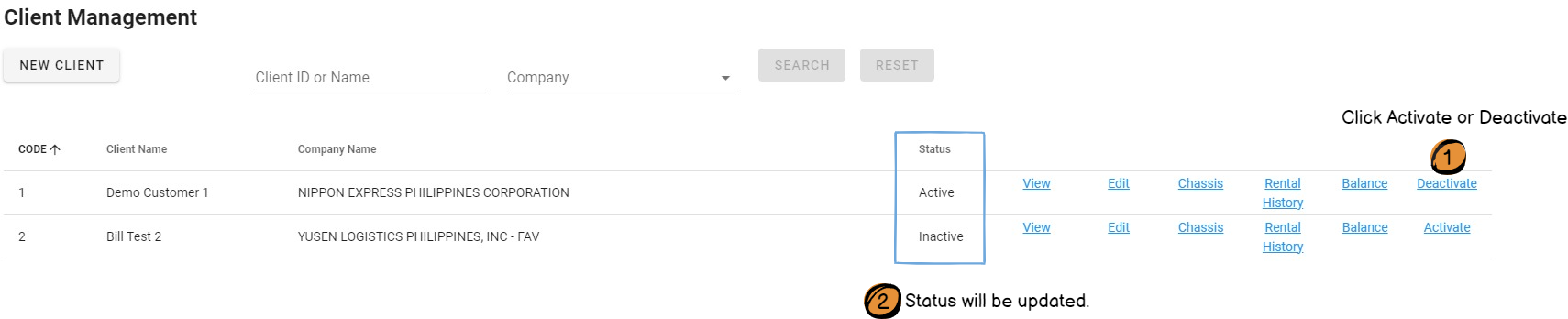
Activate/Deactivate Client
Activate
Change the client's status to "Active" so that EIR's and invoices can be tagged to it.
Deactivate
Change client's status to "Inactive" and it becomes unusable.
Client Chassis
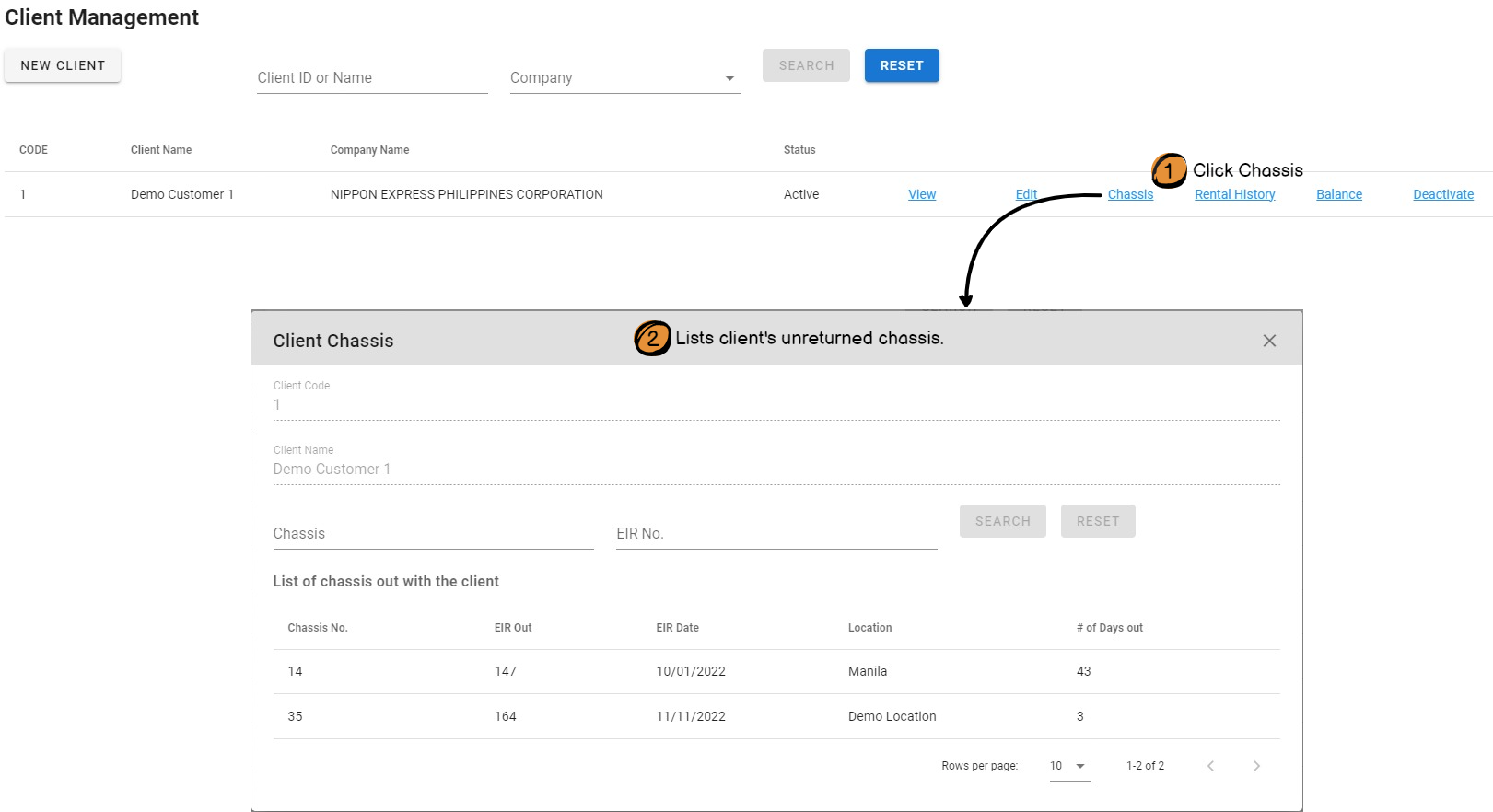
|
Information |
Description |
|
Client Code |
Unique identifier for the client. |
|
Client Name |
Name for the client. |
|
Table List details |
|
|
Chassis No. |
Chassis rented by the client. |
|
EIR Out |
EIR Out number associated with the transaction. |
|
EIR Date |
Transaction date. This is the date on the EIR Out. |
|
Location |
Depot where the chassis was released. This is the location on the EIR Out. |
|
# of Days out |
Number of days the chassis is with the client. Formula: Current Date - EIR Out Date |
Client Rental History
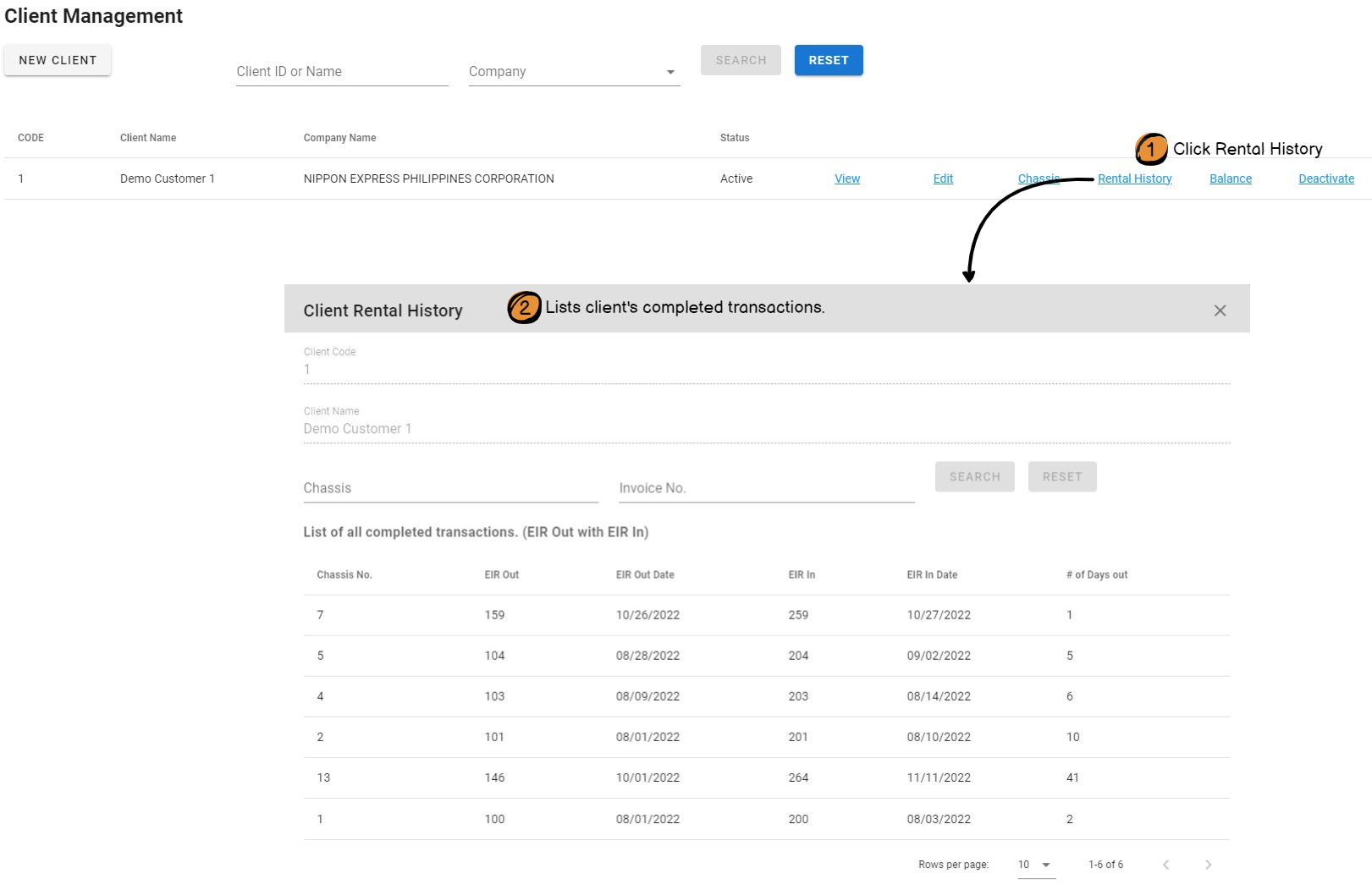
|
Information |
Description |
|
Client Code |
Unique identifier for the client. |
|
Client Name |
Name for the client. |
|
Table List details |
|
|
Chassis No. |
Chassis rented by the client. |
|
EIR Out |
EIR Out number associated with the transaction. |
|
EIR Out Date |
Transaction date. This is the date on the EIR Out. |
|
EIR In |
EIR In number associated with the transaction. |
|
EIR In Date |
Transaction date. This is the date on the EIR In. |
|
# of Days out |
Number of days the chassis was with the client. Formula: EIR In Date - EIR Out Date |
*EIR Out and EIR In must be verified. Otherwise, it is not listed.
Client Balance
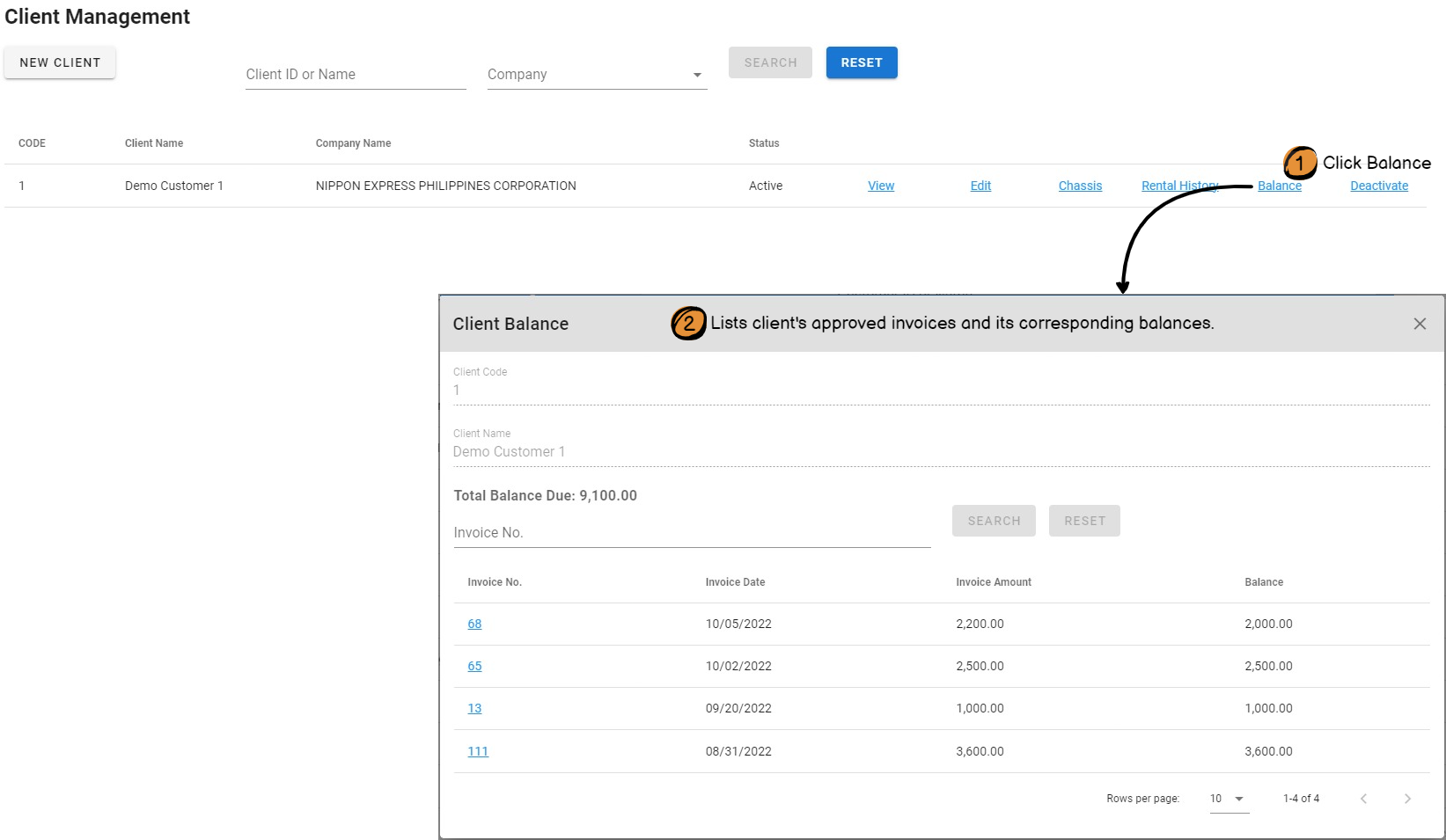
*Cancelled invoices are excluded.
|
Information |
Description |
|
Client Code |
Unique identifier for the client. |
|
Client Name |
Name for the client. |
|
Total Balance Due |
This is the sum of all invoice balances. |
|
Table List details |
|
|
Invoice No. |
Invoice's identifying number. |
|
Invoice Date |
Date on the invoice. |
|
Invoice Amount |
Total amount on the invoice. |
|
Balance |
Unpaid amount on the invoice. Formula: Invoice Amount - (Payments Received - Credit Memo + Debit Memo) |
Client Portal
The Client Portal is the page on the company website where clients can log in and see their transactions.
From this system, users will be able to help clients in managing their login access.
Important Information
- 1 Company can only have the following:
- 1 Manager type email
- 1 Normal type email
- Manager type email will have access to all pages - Chassis, Chassis Look-up, Rental History, Billing and Users
- Admin type email's access will be limited to Chassis, Chassis Look-up, and Rental History pages only.
Known limitations:
- Client activities are not recorded in the system.
Client Portal Users

New Client Portal User Form
|
Field |
Description |
|
Type |
This will determine what pages will be accessible to the user. Manager Can access all pages [Chassis, Chassis Look-up, Rental History, Billing and Users]. Normal Can access Chassis, Chassis Look-up, and Rental History pages only. *Not editable after client user is created. |
|
Company Name |
Company who's data will be accessible to the user. All client records under the same company name will be visible to the user. |
|
|
User's email address.
|
Delete a Client Portal User
To remove a user's access to the client portal, click "Clear" button corresponding to the email address to remove it.
Reset Password of a Client Portal User
If a client requests for a new password, click "Reset Password" button to send a new password to the registered email address.
Client Portal - Client's View
Client Login Credentials
Username - email registered in the Client Portal Users
Password - system-generated password sent to their email when user was created.
Change Password
- Client must log in.
- Click
 on the upper right corner of the screen.
 - Type in current password and new password.
- Save.
*User will not be logged out.
*New password can be used on the next log in.
See data of a related account (Clients with multiple client records)
Select account in the "Accounts" drop-down list in the upper left corner of the screen.

Client Forgot Password
Client can either:
(1) Click "Forgot Password" in the login page and provide the registered email.
(2) Contact Sprint to reset their password. Staff can reset password from the Client Portal Users.
A system-generated password will be sent to the user's email.
Pages
When clients log in, these are what they can see depending on user type.
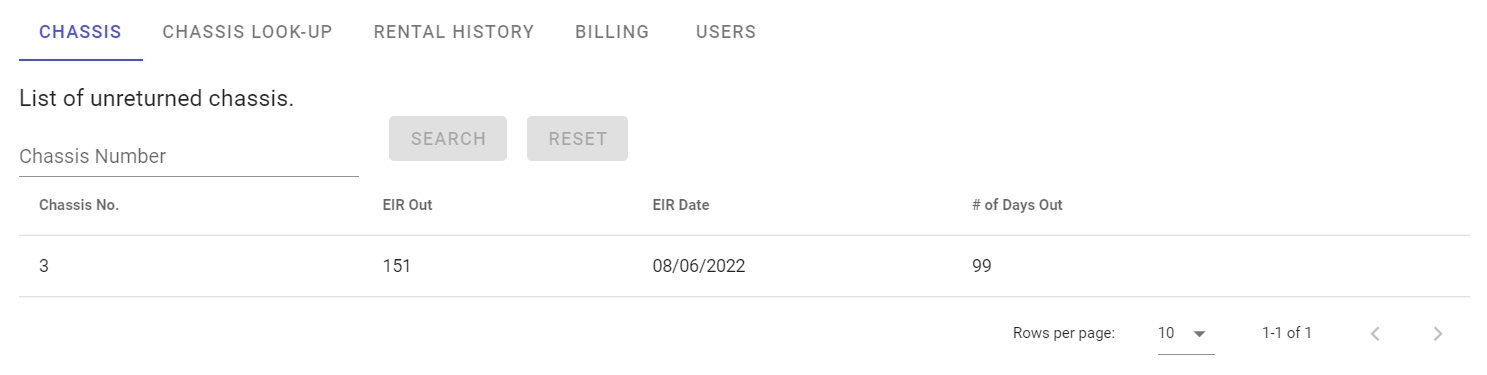
Chassis Page
Shows a list of chassis that clients have not returned.
- A client can search for a specific chassis and see its related EIR Out number and date.
*Available to Manager and Normal users.
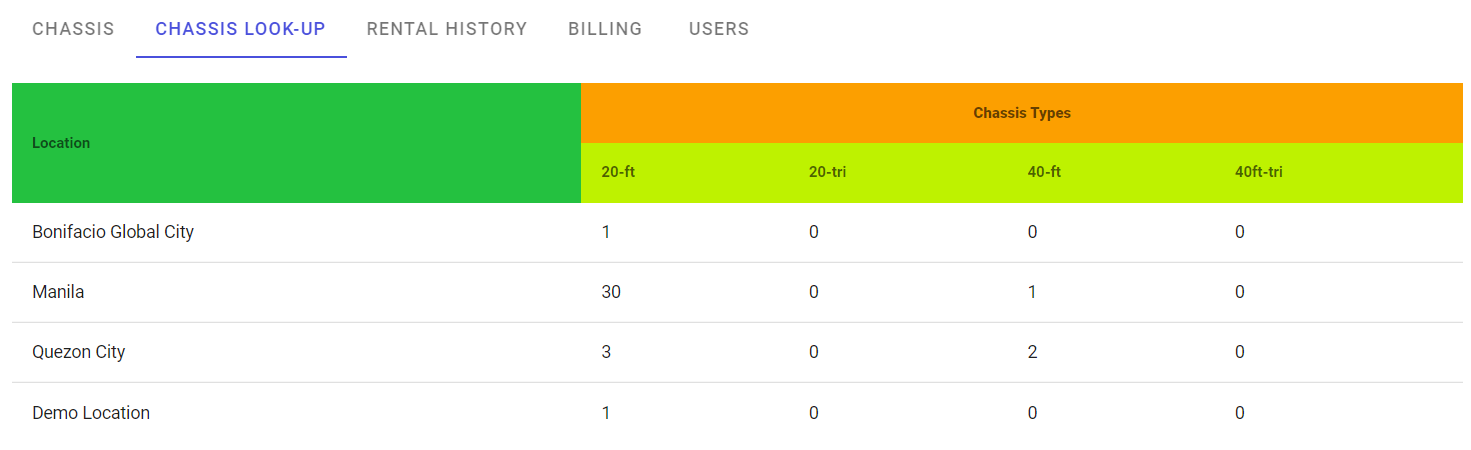
Chassis Look-up Page
Shows number of available chassis in yards by location and chassis type.
*Available to Manager and Normal users.
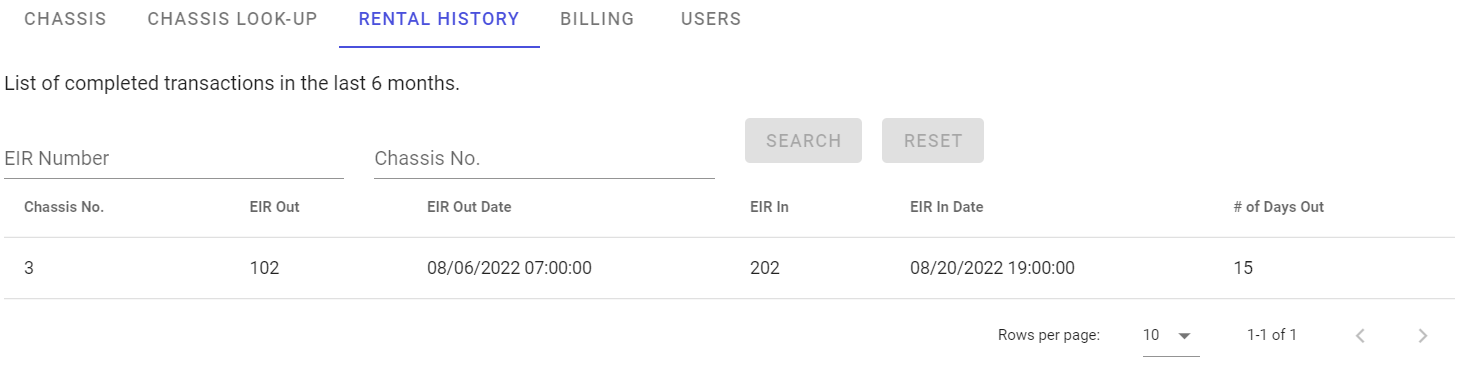
Rental History Page
Shows the client a list of their completed transactions.
- A client can search for a specific EIR or chassis and see its related information.
*Available to Manager and Normal users.
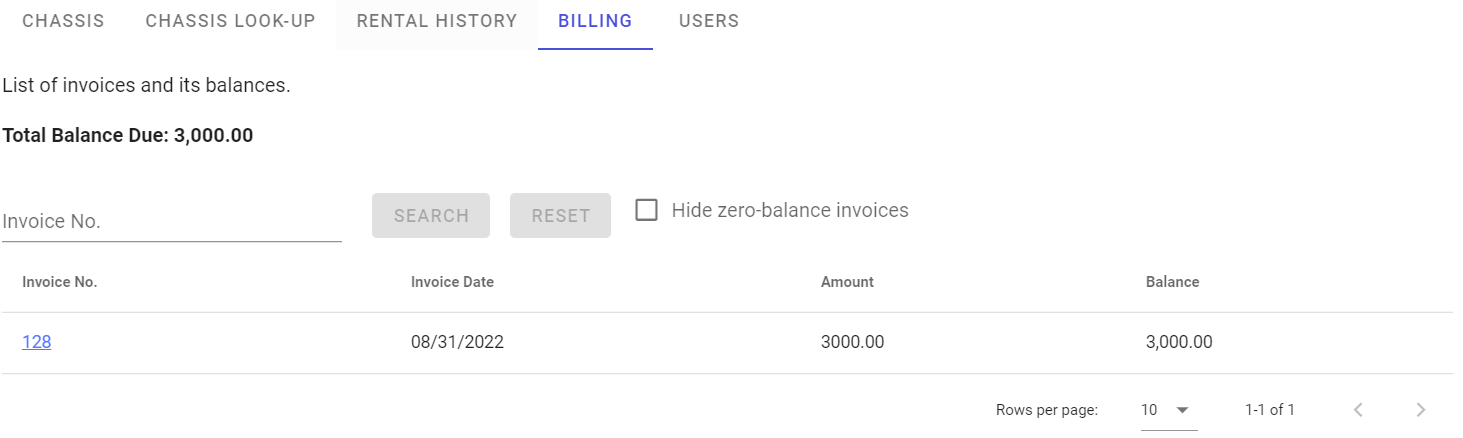
Billing Page
Shows the client a list of their invoices and its corresponding balances.
- A client can search for a specific invoice and see its related information.
- Hide invoices that has no outstanding balance by checking "Hide zero-balance invoices"
*Available to Manager users only.
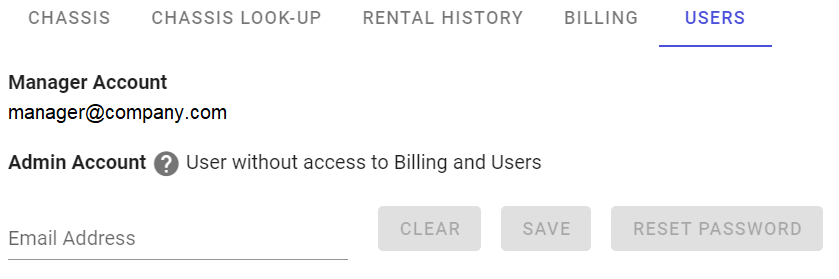
Users Page
Shows the Manager the emails of users for their company.
- A client can assign another email as an Admin account by typing the email and clicking "SAVE" button.
- Remove email of Admin account by clicking the "CLEAR" button.
- Reset password of an Admin account by clicking the "RESET PASSWORD" button. A system-generated password will be sent to the registered email.
*Available to Manager users only.
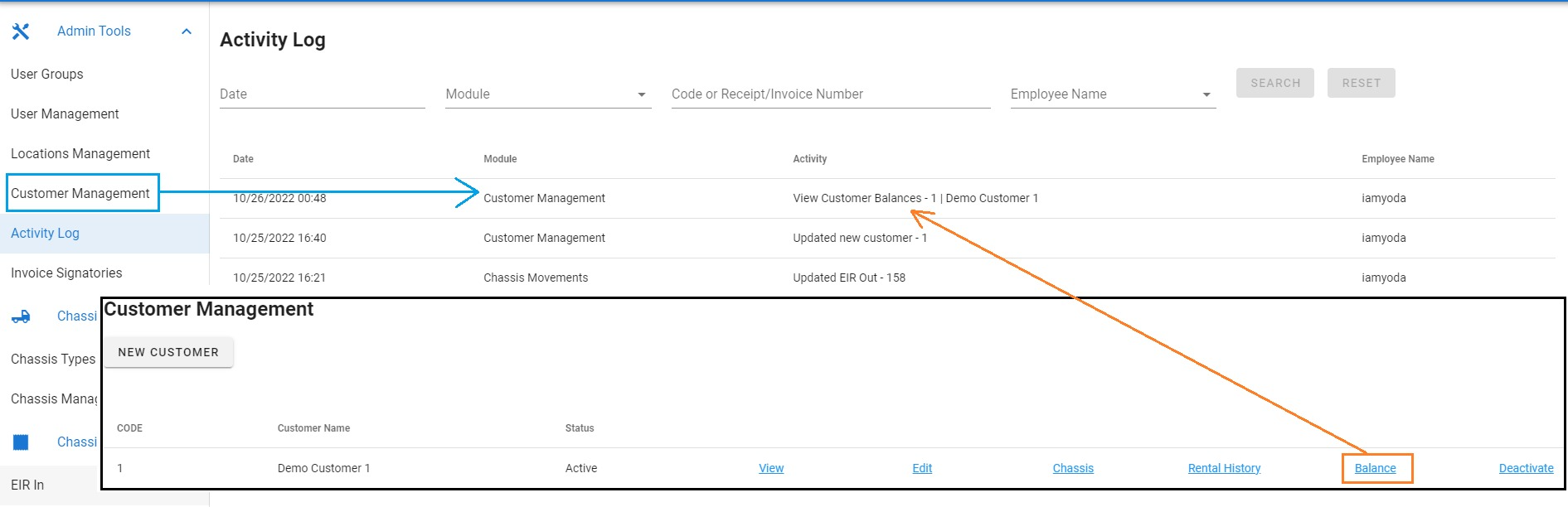
Activity Log
The Activity Log is where system activities are recorded.
|
Information |
Description |
|
Date |
Date and time the activity was done. |
|
Module |
Module where the activity was done. |
|
Activity |
Specific activity that was done. |
|
Employee Name |
Username of the employee who did the activity. |
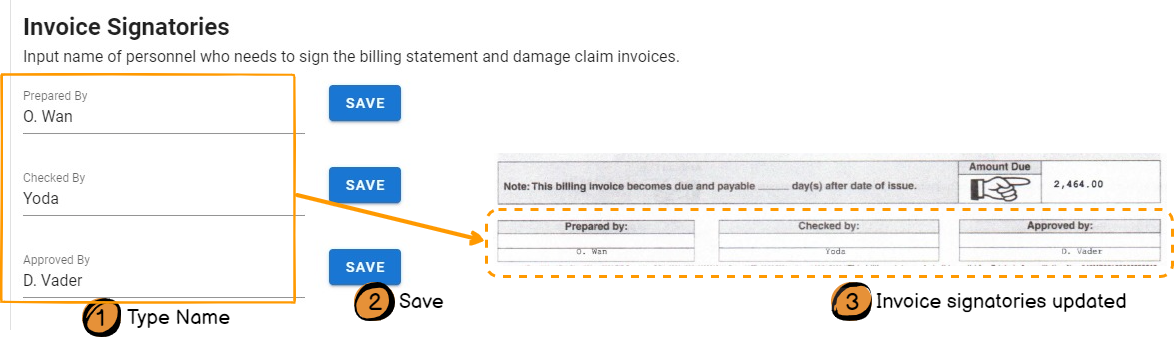
Invoice Signatories
This is where names of people who need to sign the invoices are set and saved.
Chassis Types
Chassis Type helps identify the capacity and dimensions of a chassis.
NOTES:
- This is required to create chassis records.
- After creating a new chassis type, go to Client Management and update rates on each client records.
Manage Chassis Types
Create a Chassis Type
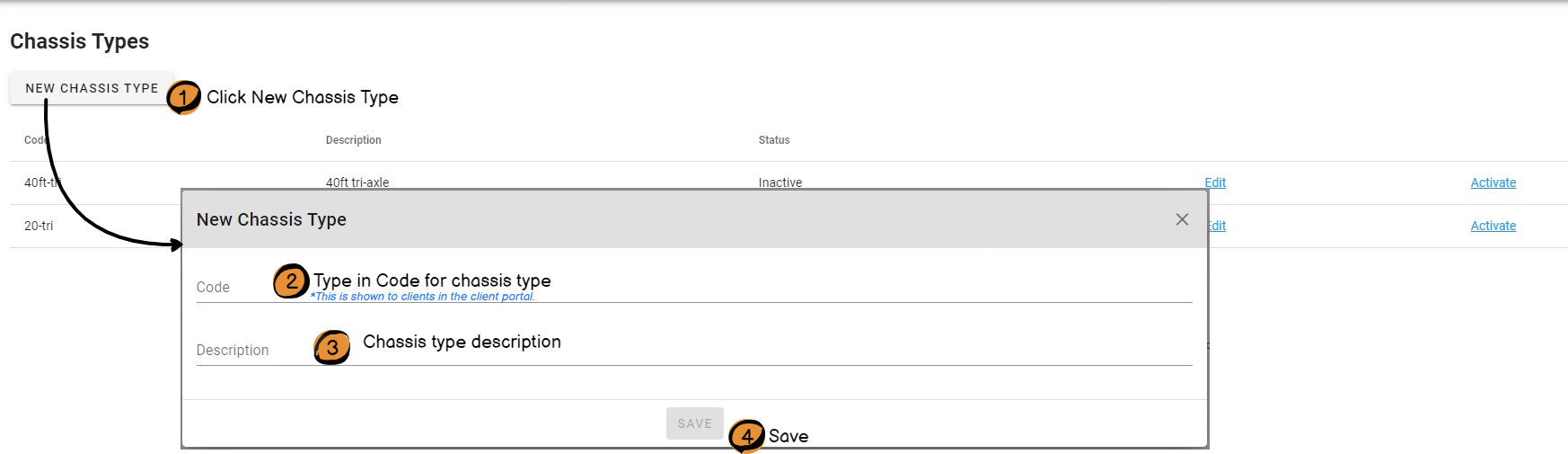
New Chassis Type Form
|
Field |
Description |
|
Code |
10-letter unique identifier of the chassis type. *Does not accept special characters. *Not editable after chassis type is created. *This is shown in the Client Portal's Chassis Lookup page. |
|
Description |
Short description about the chassis type. *Does not accept special characters. |
*Newly created Chassis Types are "Active" by default.
*After creation, go to Client Management. Add rates on the client records so that clients can be billed correctly.
Activate/Deactivate Chassis Type
Activate
Change the chassis type's status to "Active" so that chassis can be tagged to it.
Deactivate
Change chassis type's status to "Inactive" and it becomes unusable.

Chassis Management
Chassis is the product Sprint rents out to its clients.
Manage Chassis
- Create a Chassis
- View or Download OR/CR
- Chassis Damage Claims
- Chassis Repair History
- Activate or Deactivate a Chassis
Create a Chassis
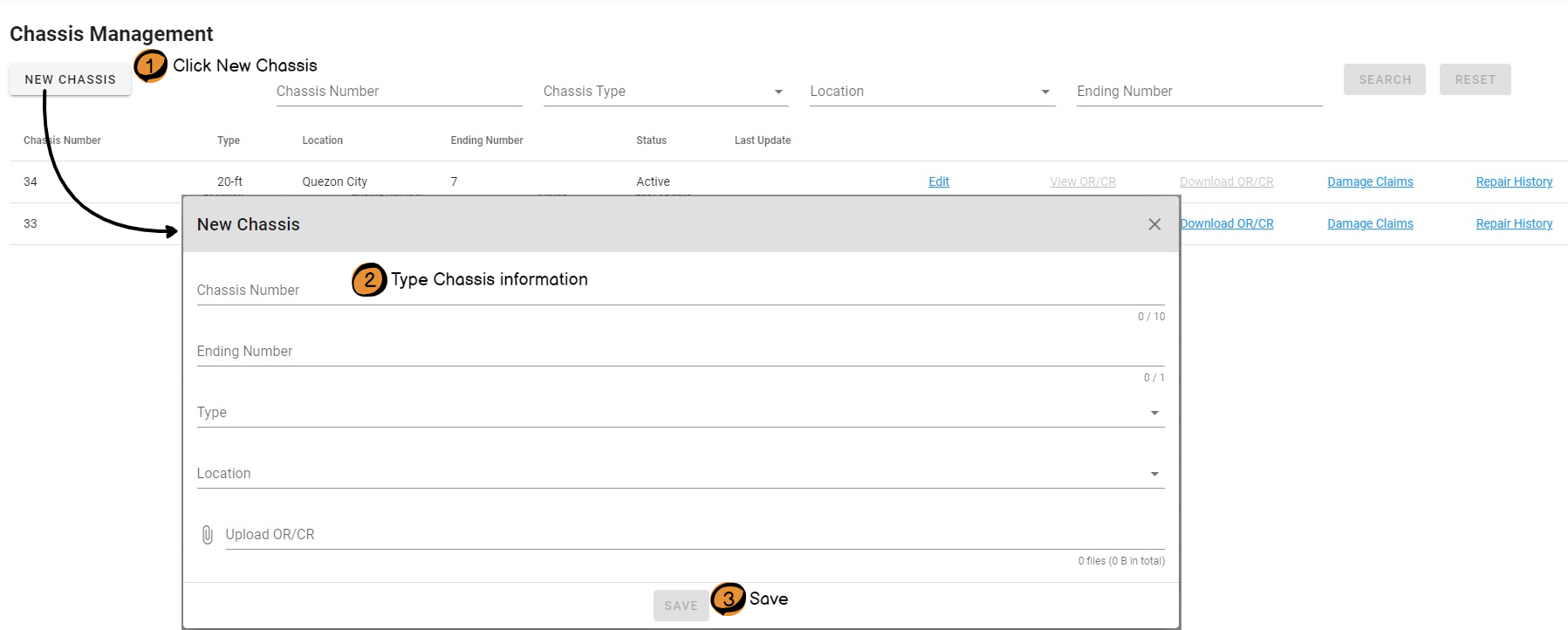
New Chassis Form
|
Field |
Description |
|
Chassis Number |
Unique identifier of the chassis. *Not editable after chassis type is created. |
|
Ending Number |
Last digit of the chassis plate number. |
|
Type |
Chassis' type. |
|
Location |
Depot/yard where the chassis is stored. |
|
Upload OR/CR |
Select the scanned OR/CR file and upload. Supports these file formats: HEIF, HEIC, JPEG/JPG, PNG |
*Newly created Chassis are "Active" by default.
View or Download OR/CR
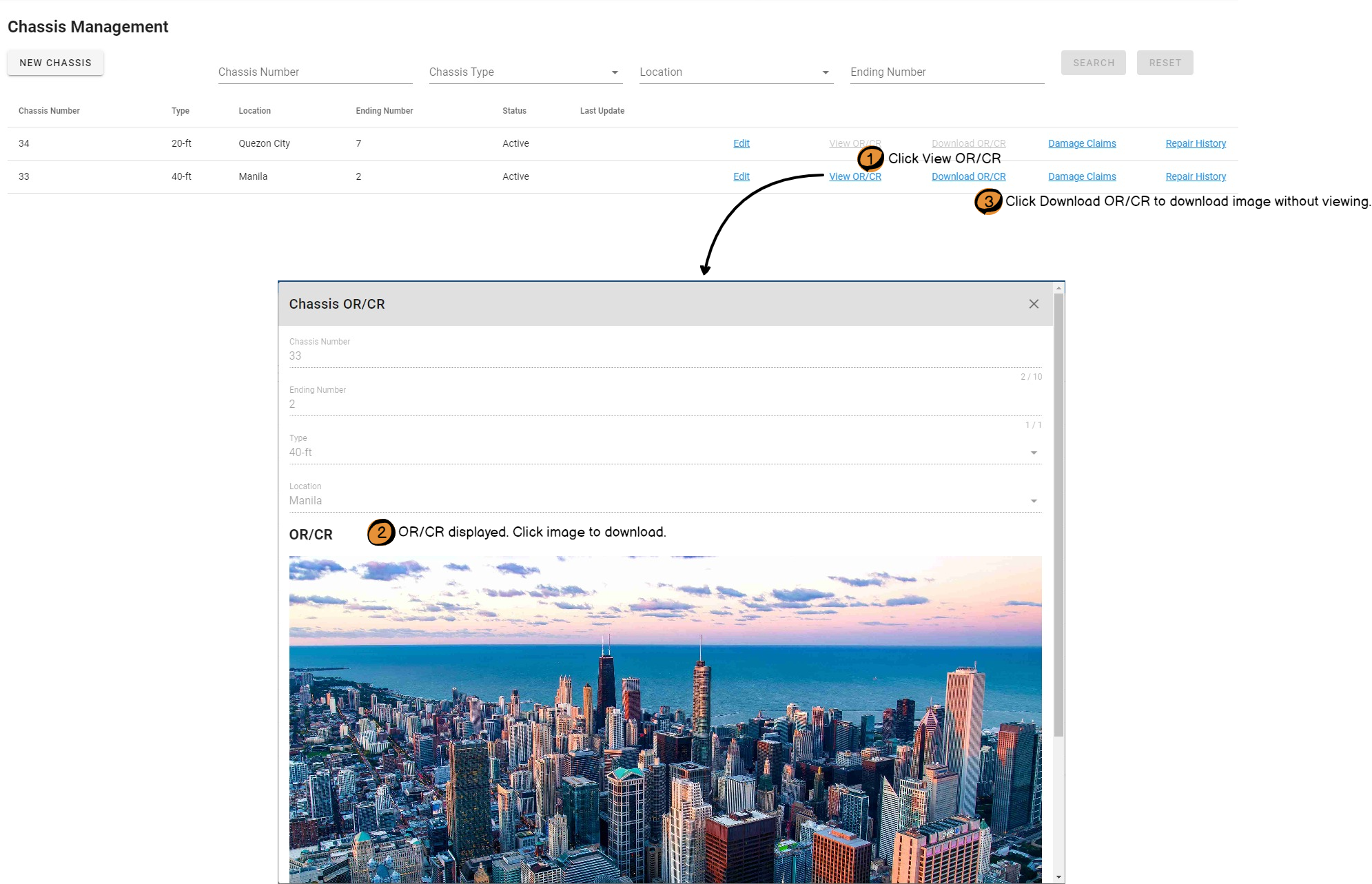
*View OR/CR and Download OR/CR buttons are disabled if there is no image uploaded.
Chassis Damage Claims
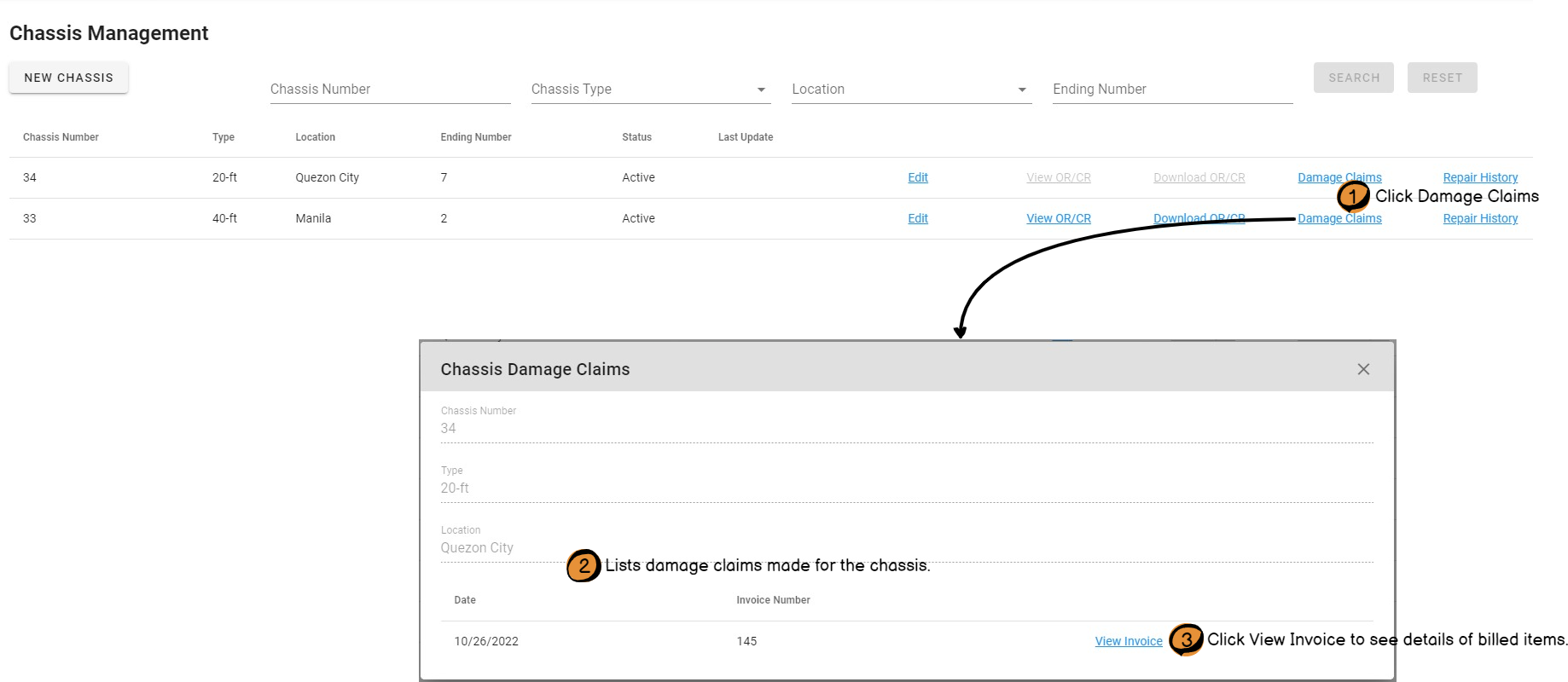
*Only Approved damage claims are listed.
Chassis Repair History
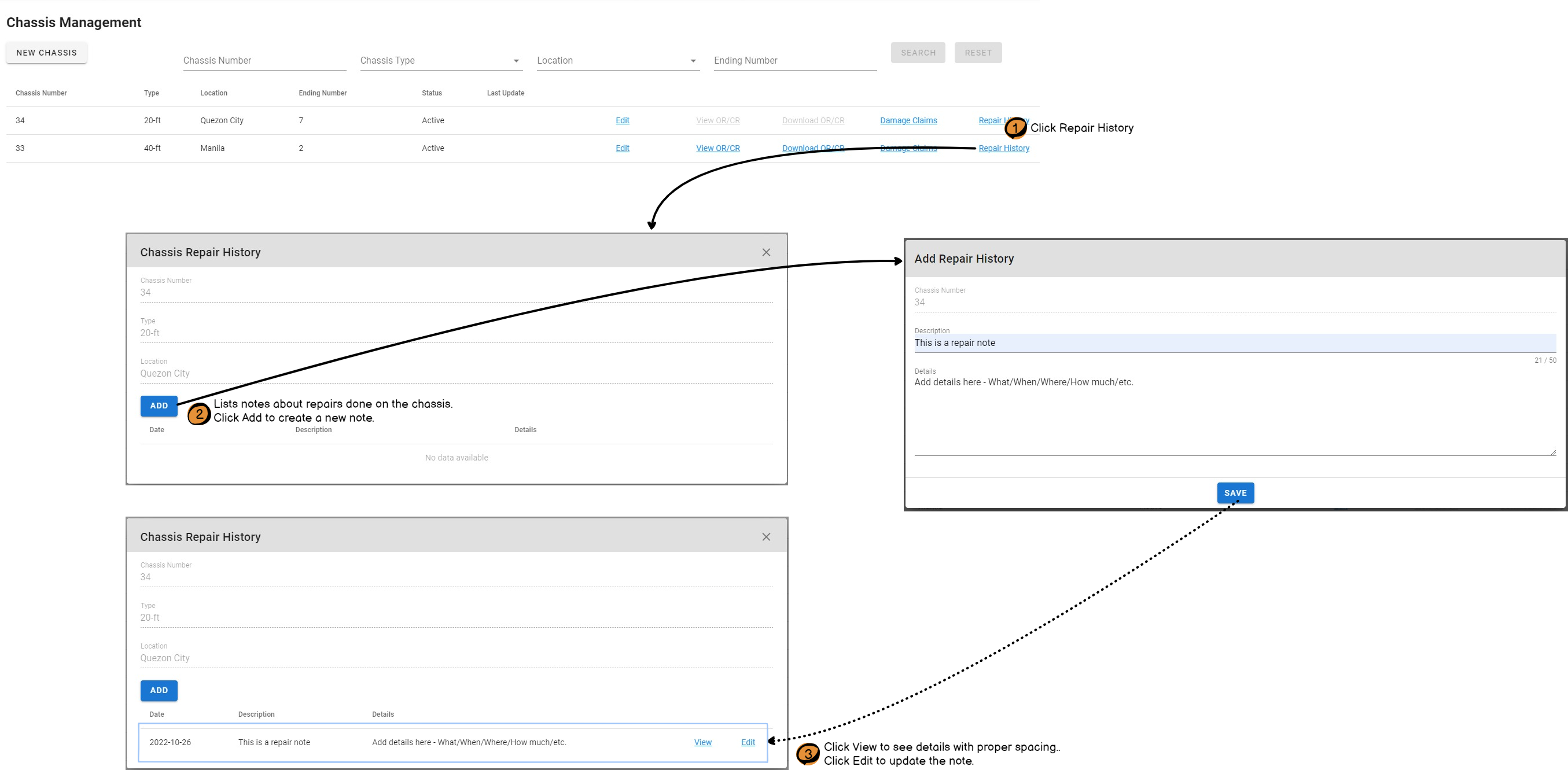
Activate/Deactivate a Chassis
Activate
Change the chassis' status to "Active" so that EIR's and damage claims can be tagged to it.
Deactivate
Change chassis' status to "Inactive" and it becomes unusable.

EIR Out
EIR Out is the receipt given to clients when a chassis is pulled out from the depot/yard.
New EIR Out
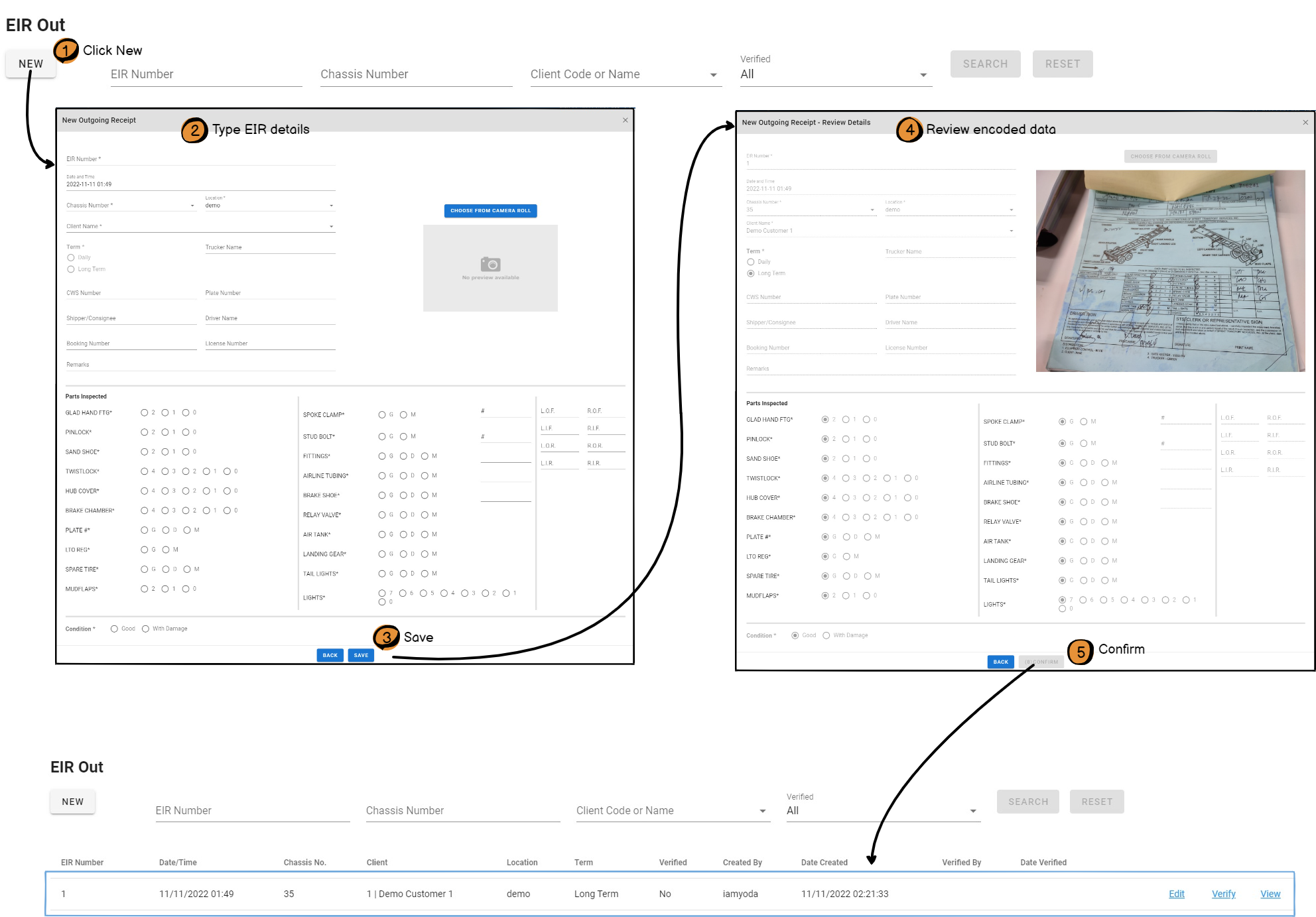
*Chassis Number lists all Chassis that is in the selected depot/yard (Location).
Verify EIR Out
Verifying an EIR Out means the encoded data has been checked and is accurate.
Only verified EIR Out's will be included in the next billing statement.
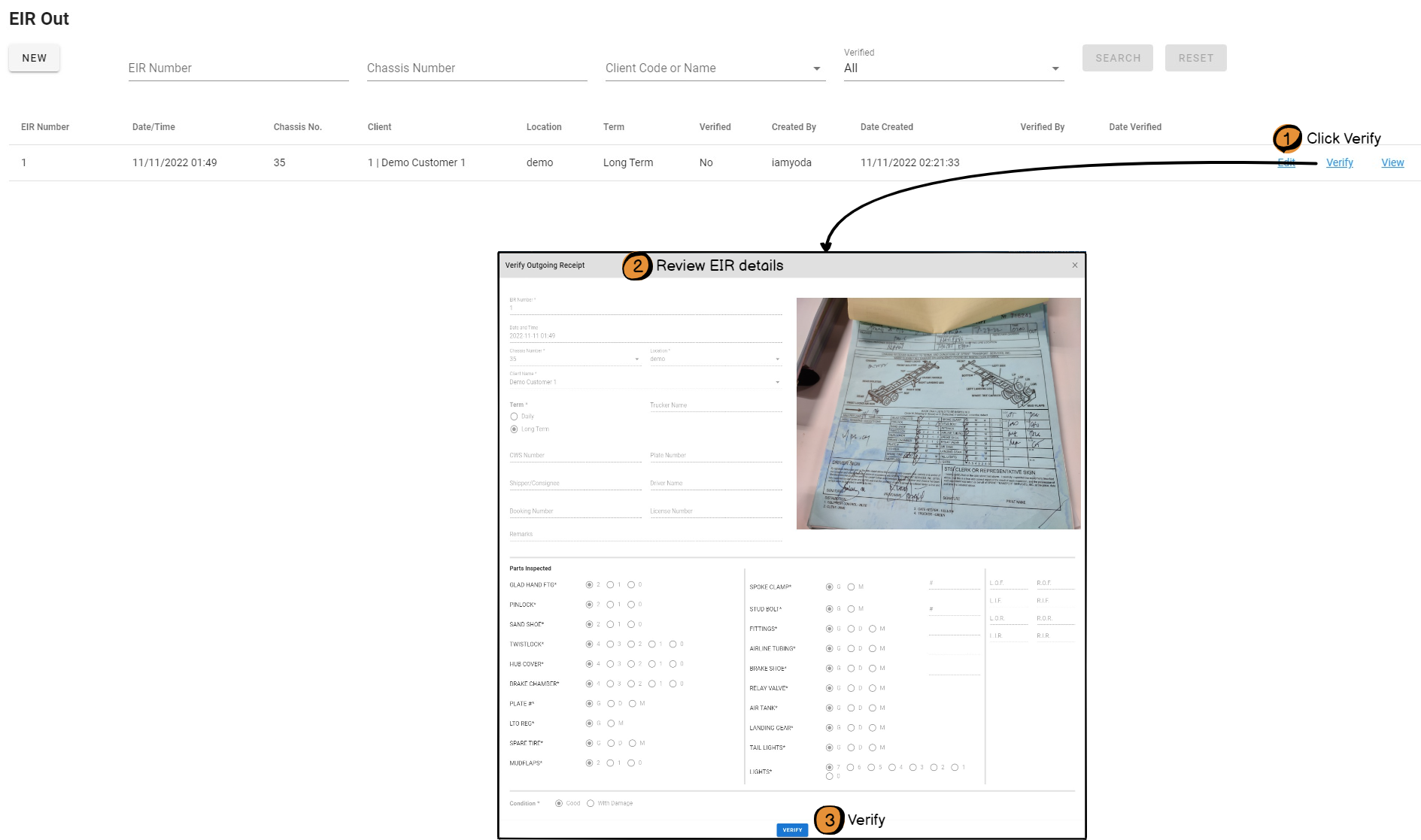
*After an EIR Out is verified, it is not editable.
Read Edit a Verified EIR Out if you need to edit one.
Edit a Verified EIR Out
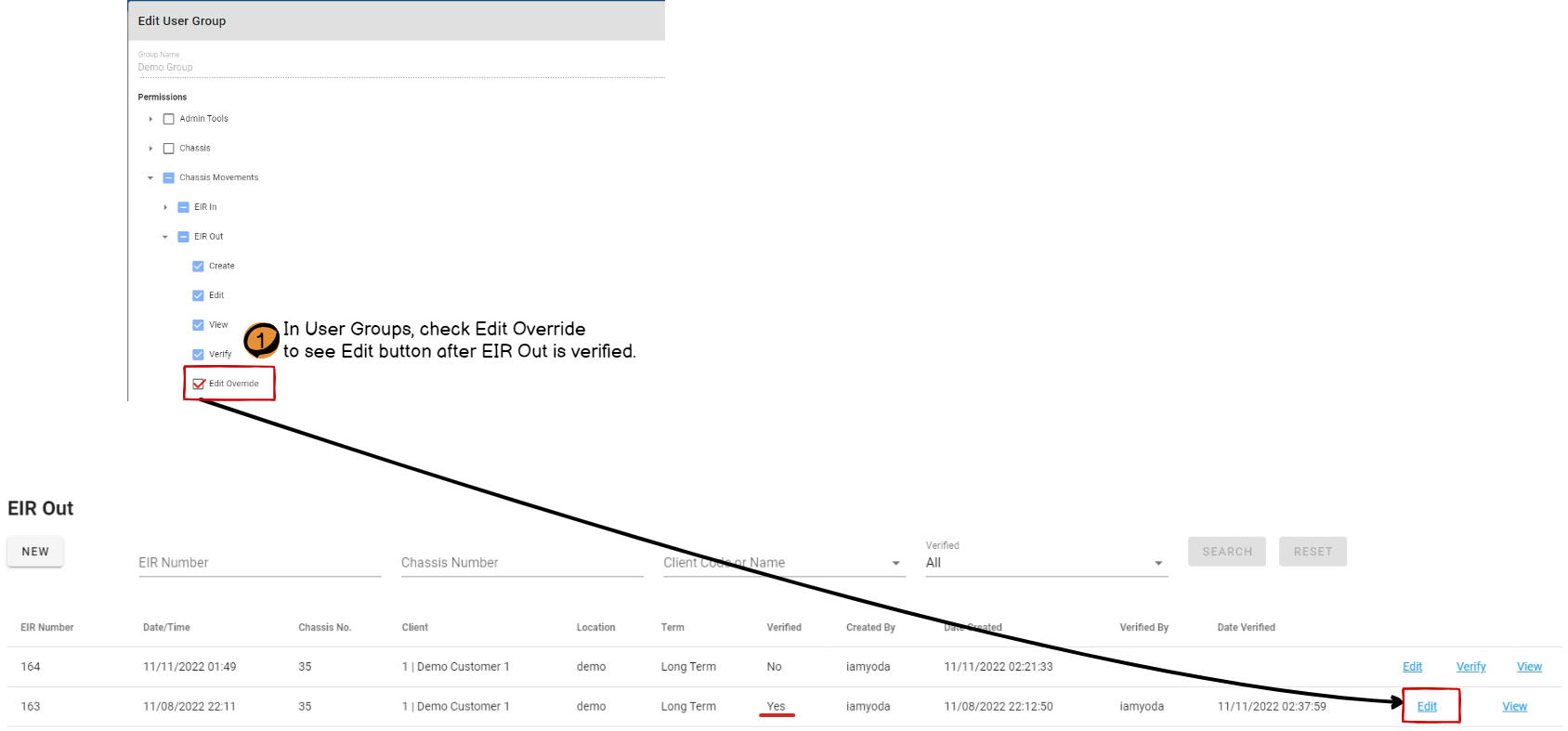
EIR In
EIR In is the receipt given to clients when a chassis is returned to the depot/yard.
New EIR In
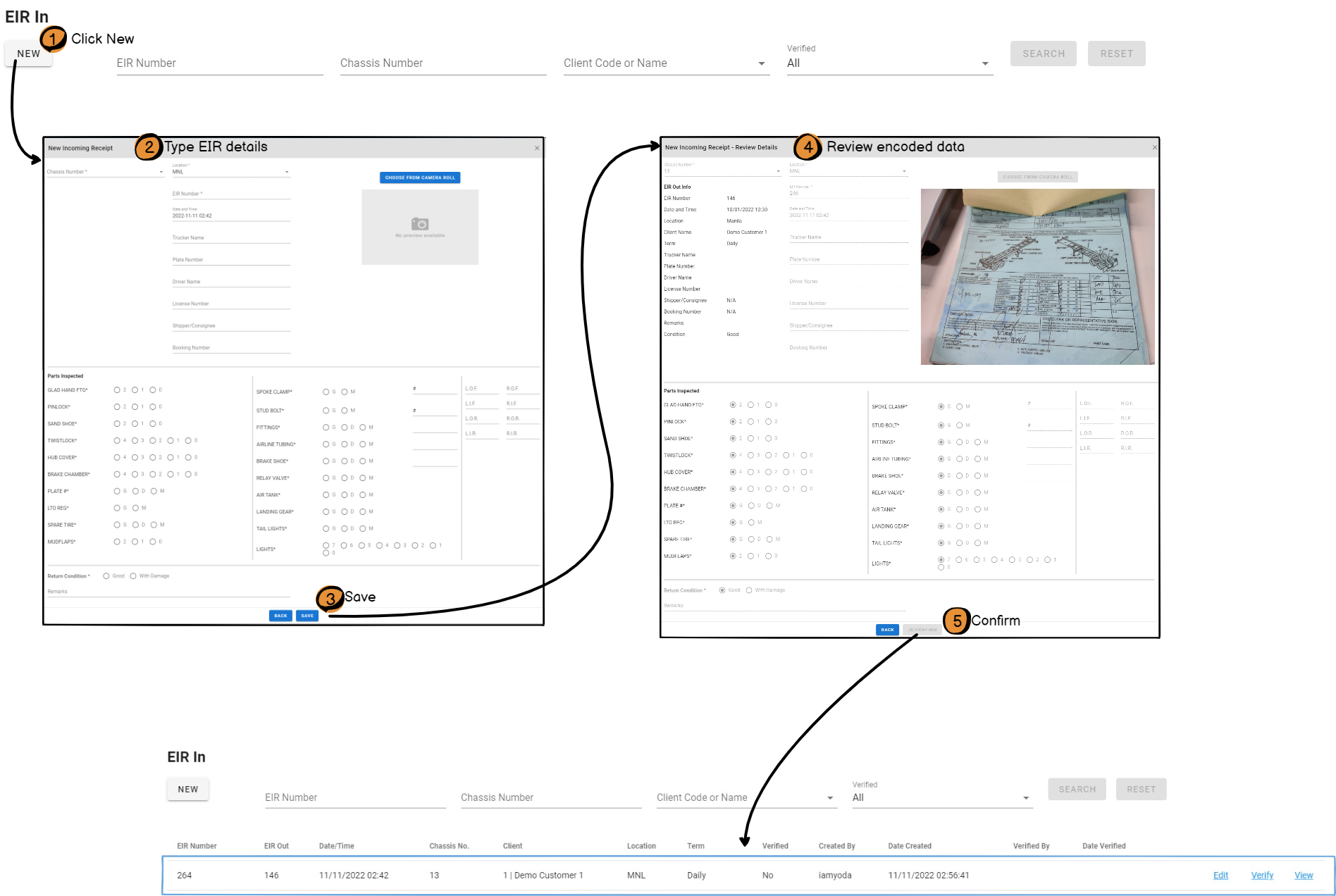
*In the EIR In form, select a Chassis Number first to see EIR Out information.
Chassis Number lists all Chassis that is out with the client.
Verify EIR In
Verifying an EIR In means the encoded data has been checked and is accurate.
Only verified EIR In's will be included in the next billing statement.
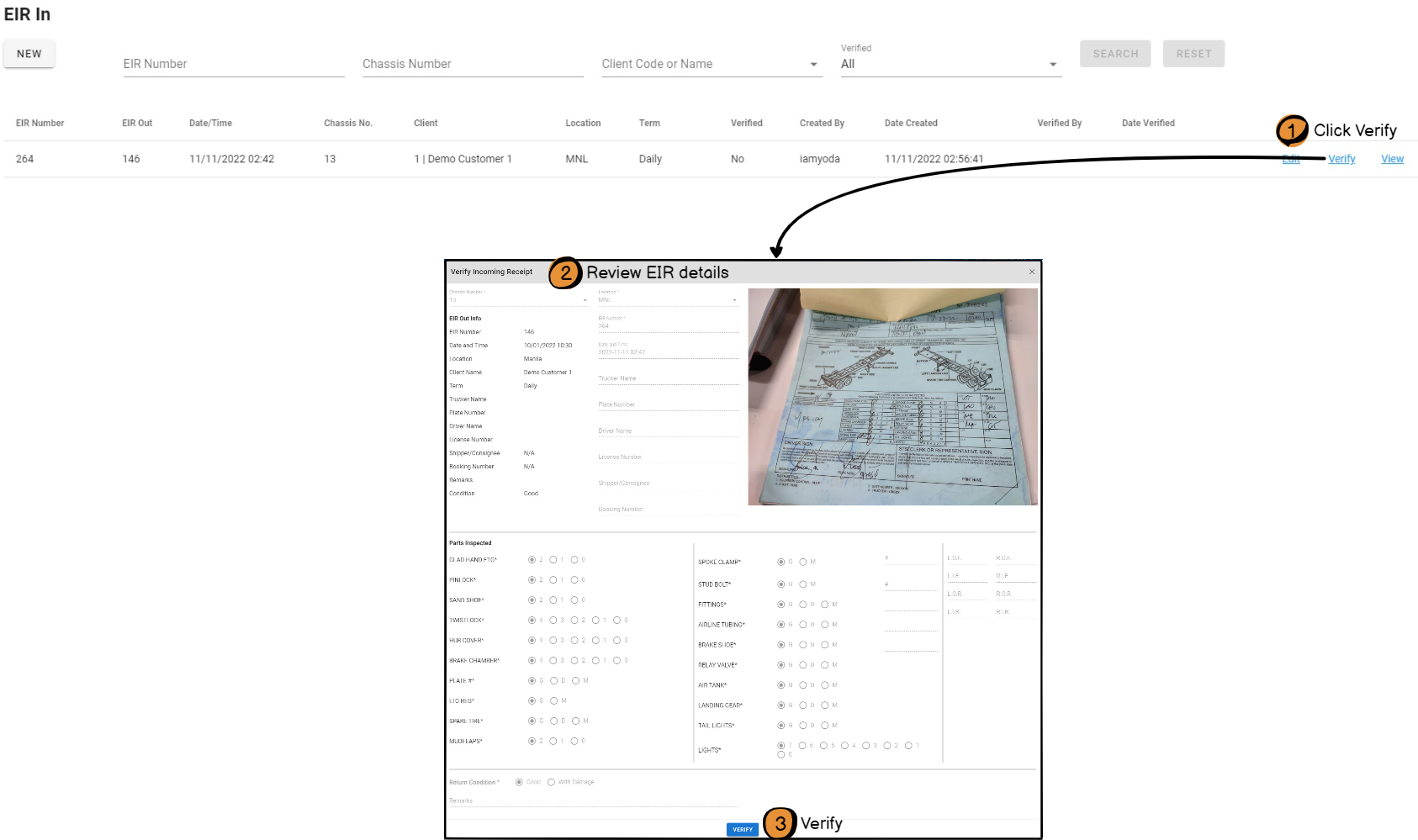
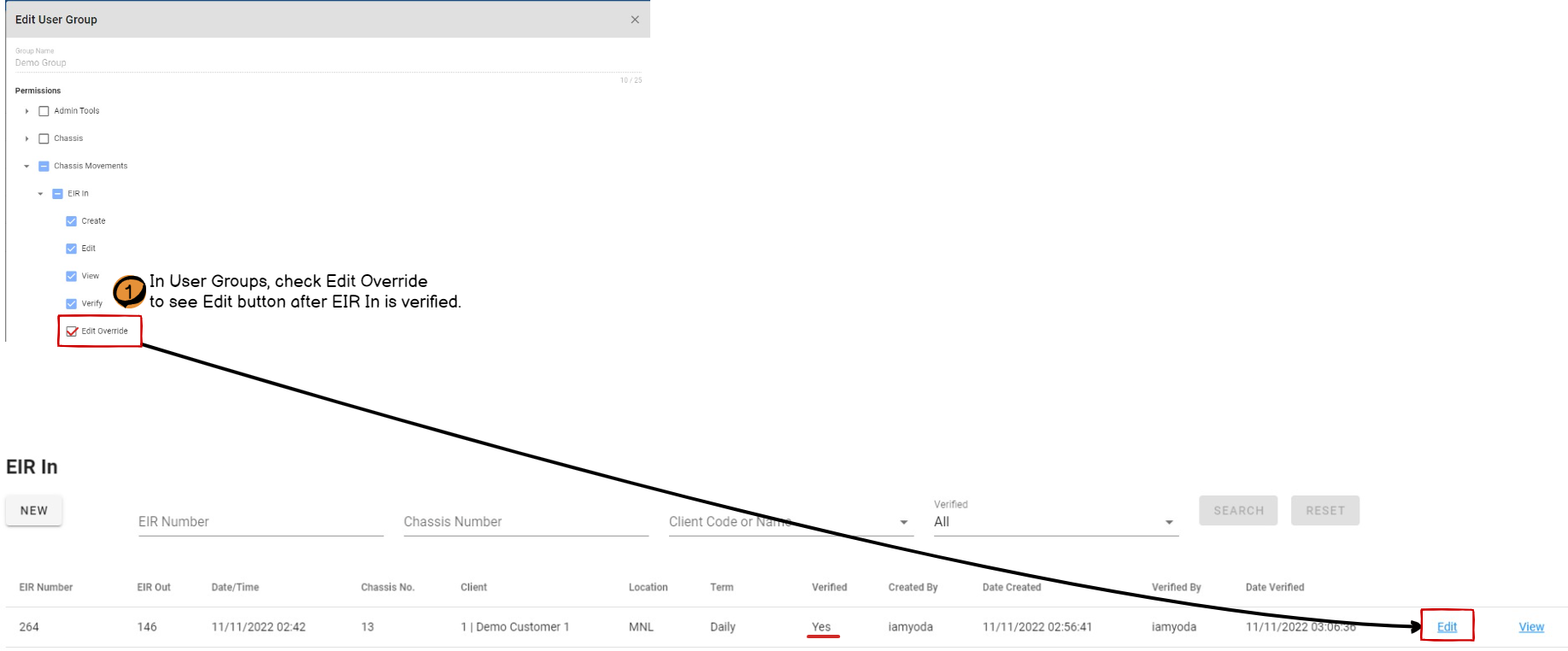
*After an EIR In is verified, it is not editable.
Read Edit a Verified EIR In if you need to edit one.
Edit a Verified EIR In
Track Chassis
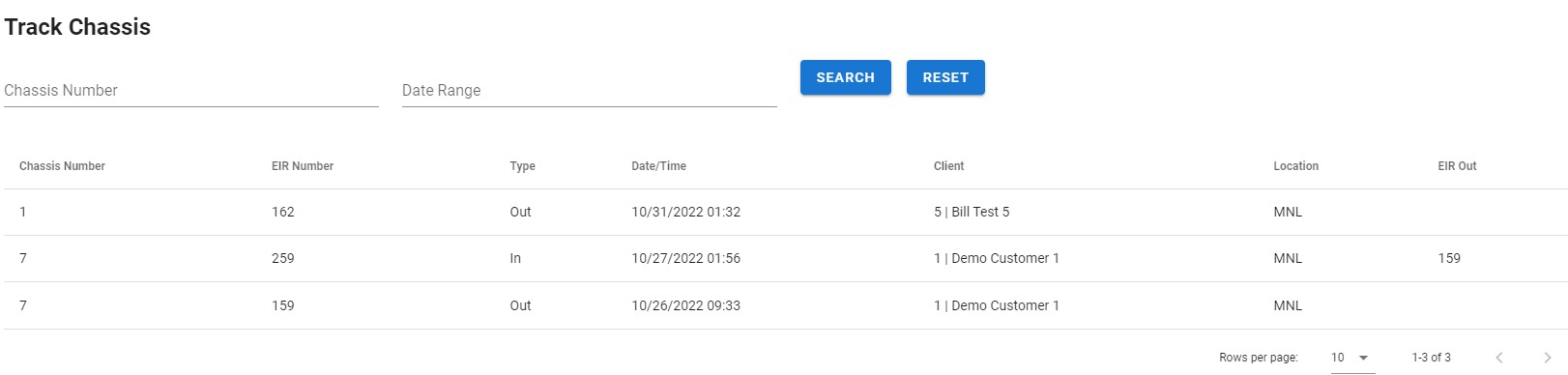
Look for a chassis by typing any of the following:
- Chassis Number
- Date Range
- System will show a list of chassis with EIR Out date or EIR In date within the selected range
- Tip: To select 1 day only, click the same date twice. (Example: Jan. 1, 2022 - Jan. 1, 2022)
|
Column Name |
Description |
|
Chassis Number |
Identifier of the chassis |
|
EIR Number |
Number on transaction-related EIR |
|
Type |
Transaction type. Out = Outgoing | In = Incoming |
|
Date/Time |
Date and time of transaction |
|
Client |
Transaction-related Client Code and Name |
|
Location |
Depot where the transaction happened |
|
EIR Out |
Number on EIR Out if Type is "In" |
|
Billed |
Yes = transaction has been included in a billing invoice. No = transaction has not been billed yet. |
Billing Statements
Billing Statements are invoices generated based on client transactions. These invoices are given to the clients to inform them of how much they owe for renting a chassis.
Generate Regular Billing Invoice
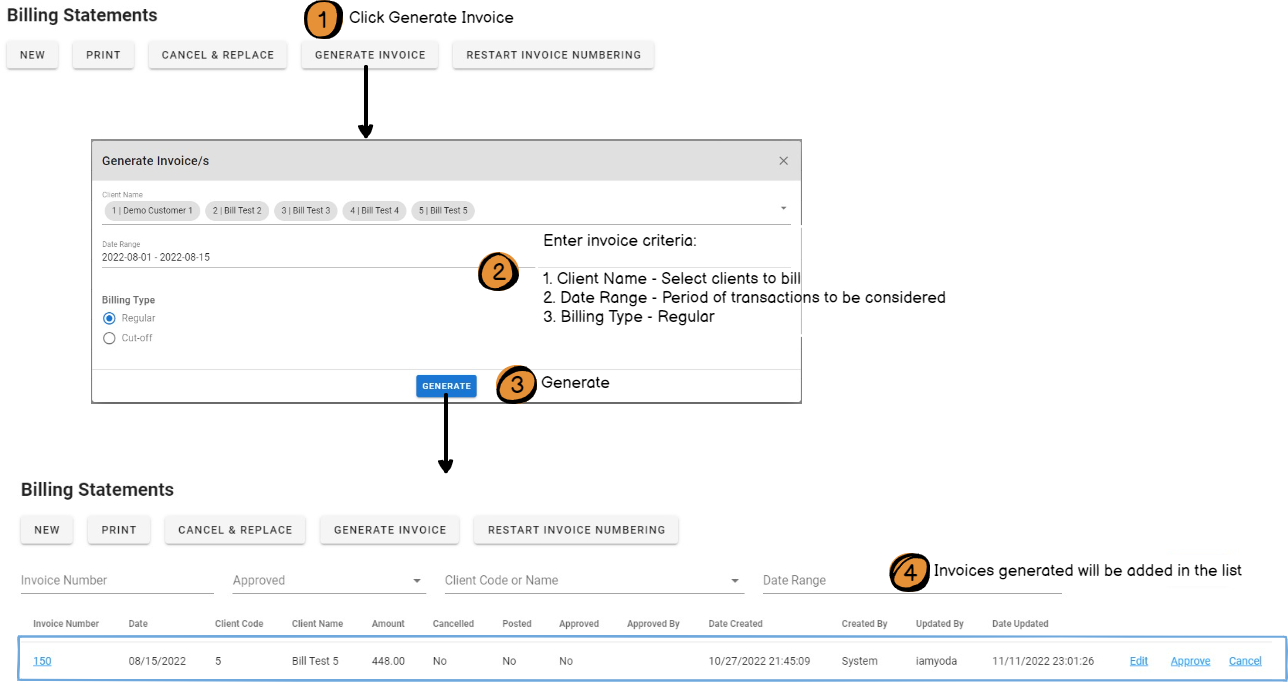
Billing Type: Regular
Generated invoices in this billing type will include all completed transactions within the selected date range.
Complete Transaction = EIR Out with EIR In
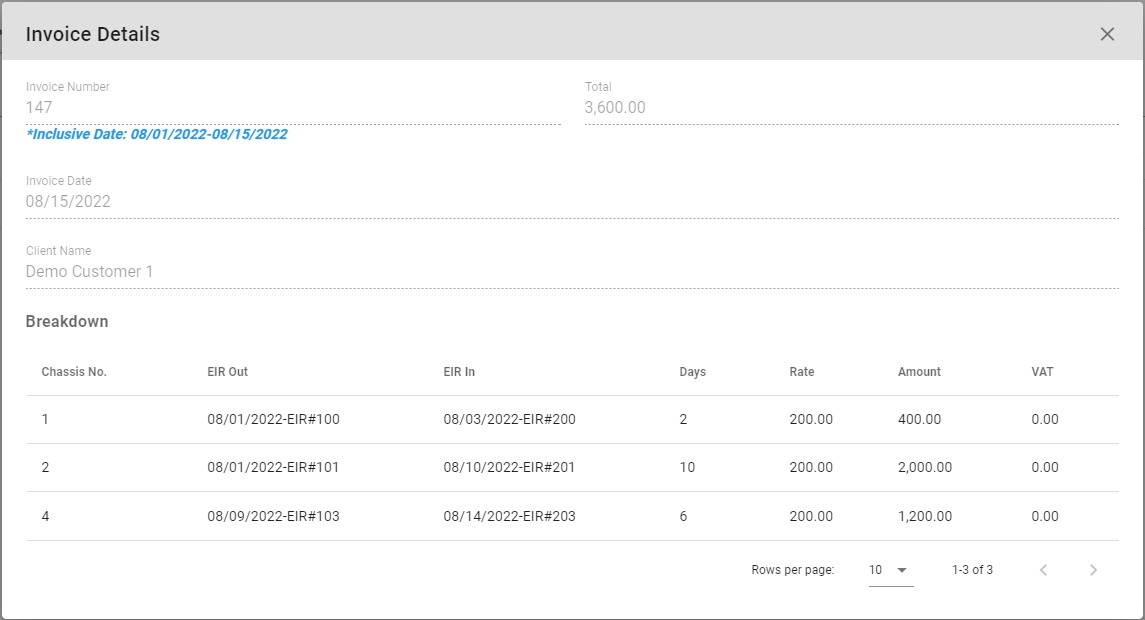
|
Information |
Description |
|
Invoice Number |
Identifier of the invoice. |
|
Total |
Total billed amount. Formula: Total = Sum of all values in Amount column |
|
Inclusive Date |
Note showing the selected date range. |
|
Invoice Date |
Date of the invoice. This is the last date on the selected date range. |
|
Client Name |
Name of the client to whom the invoice will be issued. |
|
[Breakdown] Chassis No. |
Chassis Number of rented chassis |
|
[Breakdown] EIR Out |
Date & EIR Number on the EIR Out |
|
[Breakdown] EIR In |
Date & EIR Number on the EIR In |
|
[Breakdown] Days |
Number of days to be billed. (Formula: EIR In Date/Time - EIR Out Date/Time) *Any 24-hour excess, even 1 second, is considered 1 day. |
|
[Breakdown] Rate |
Rate applied per day. *This is based on the chassis type of the rented chassis and applicable rate in client record. |
|
[Breakdown] Amount |
Amount billed for the transaction (Formula: Days * Rate) |
|
[Breakdown] VAT |
Value Added Tax. 12% of the Amount. (Formula: Amount * 0.12) *Computed if Client is not Tax Exempt. |
Generate Cutoff Billing Invoice
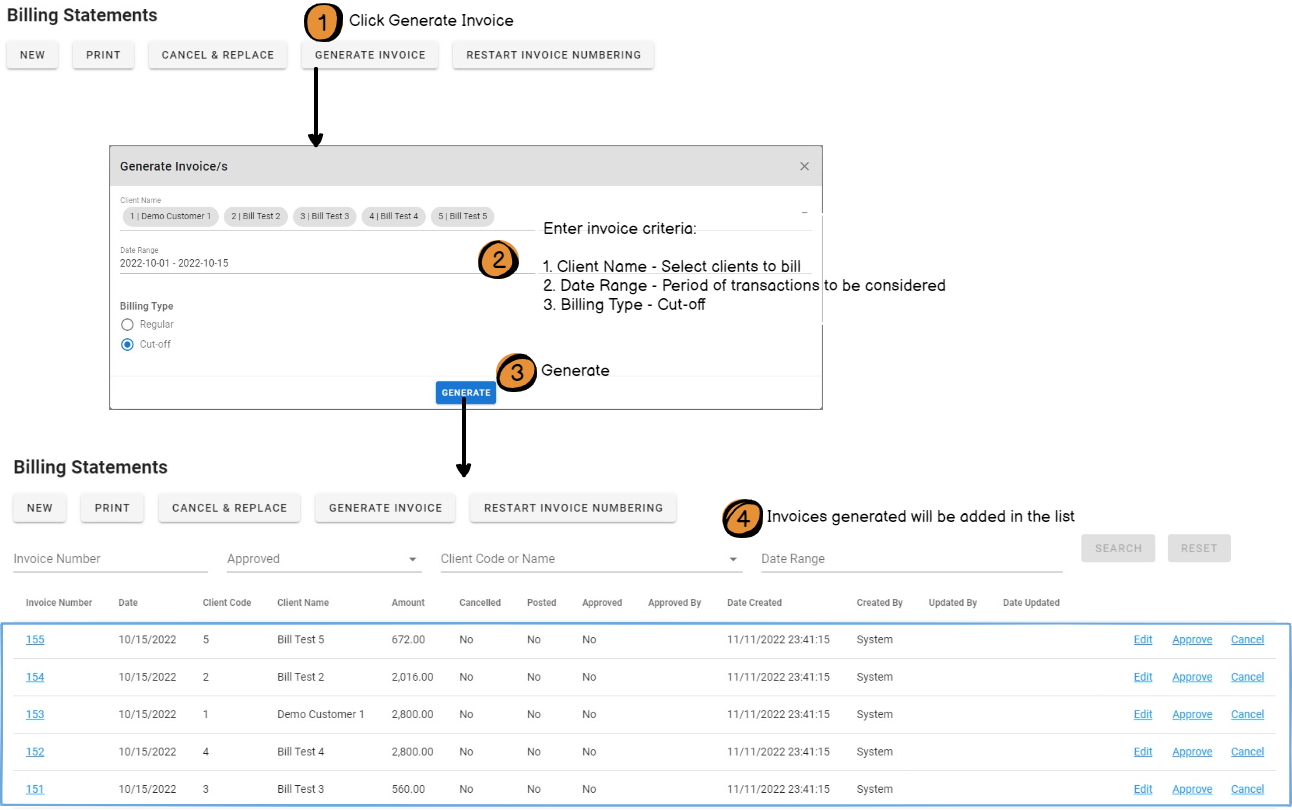
Billing Type: Cut-off
Generated invoices in this billing type will include transactions with the following scenarios:
- EIR Out date before date range & No EIR In
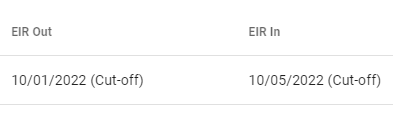
Sample EIR details displayed
- EIR Out date within date range & No EIR In
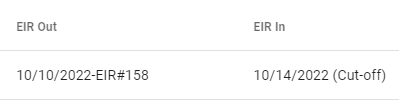
Sample EIR details displayed
- EIR Out date before date range & EIR In within date range
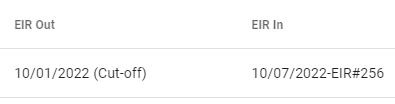
Sample EIR details displayed
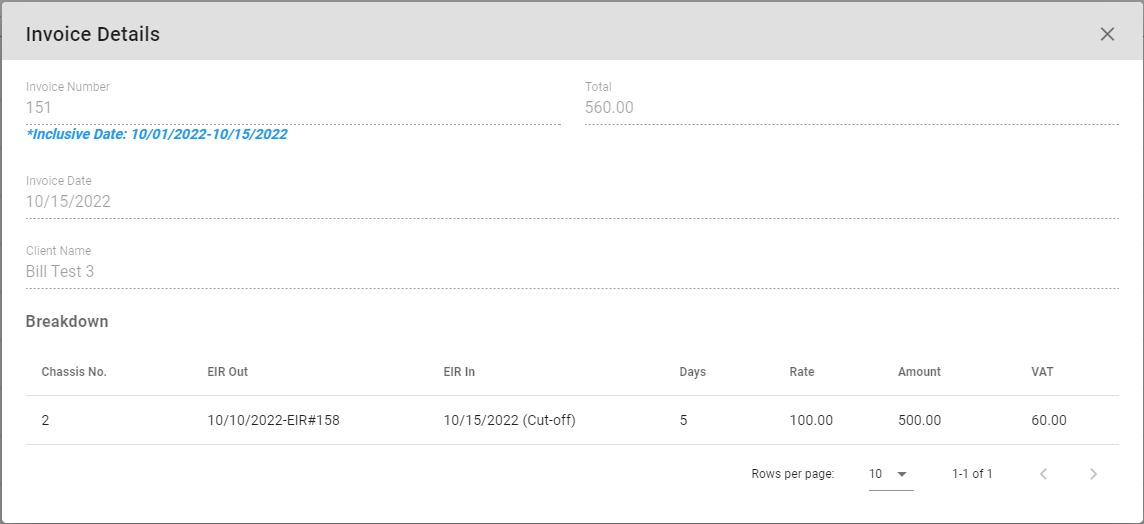
|
Information |
Description |
|
Invoice Number |
Identifier of the invoice. |
|
Total |
Total billed amount. Formula: Total = Sum of all values in Amount column |
|
Inclusive Date |
Note showing the selected date range. |
|
Invoice Date |
Date of the invoice. This is the last date on the selected date range. |
|
Client Name |
Name of the client to whom the invoice will be issued. |
|
[Breakdown] Chassis No. |
Chassis Number of rented chassis |
|
[Breakdown] EIR Out |
EIR Out details or start of cut-off date considered. |
|
[Breakdown] EIR In |
EIR In details or end of cut-off date considered. |
|
[Breakdown] Days |
Number of days to be billed. (Formula: EIR In Date/Time - EIR Out Date/Time) *Any 24-hour excess, even 1 second, is considered 1 day. |
|
[Breakdown] Rate |
Rate applied per day. *This is based on the chassis type of the rented chassis and applicable rate in client record. |
|
[Breakdown] Amount |
Amount billed for the transaction (Formula: Days * Rate) |
|
[Breakdown] VAT |
Value Added Tax. 12% of the Amount. (Formula: Amount * 0.12) *Computed if Client is not Tax Exempt. |
Manually Create a Billing Invoice
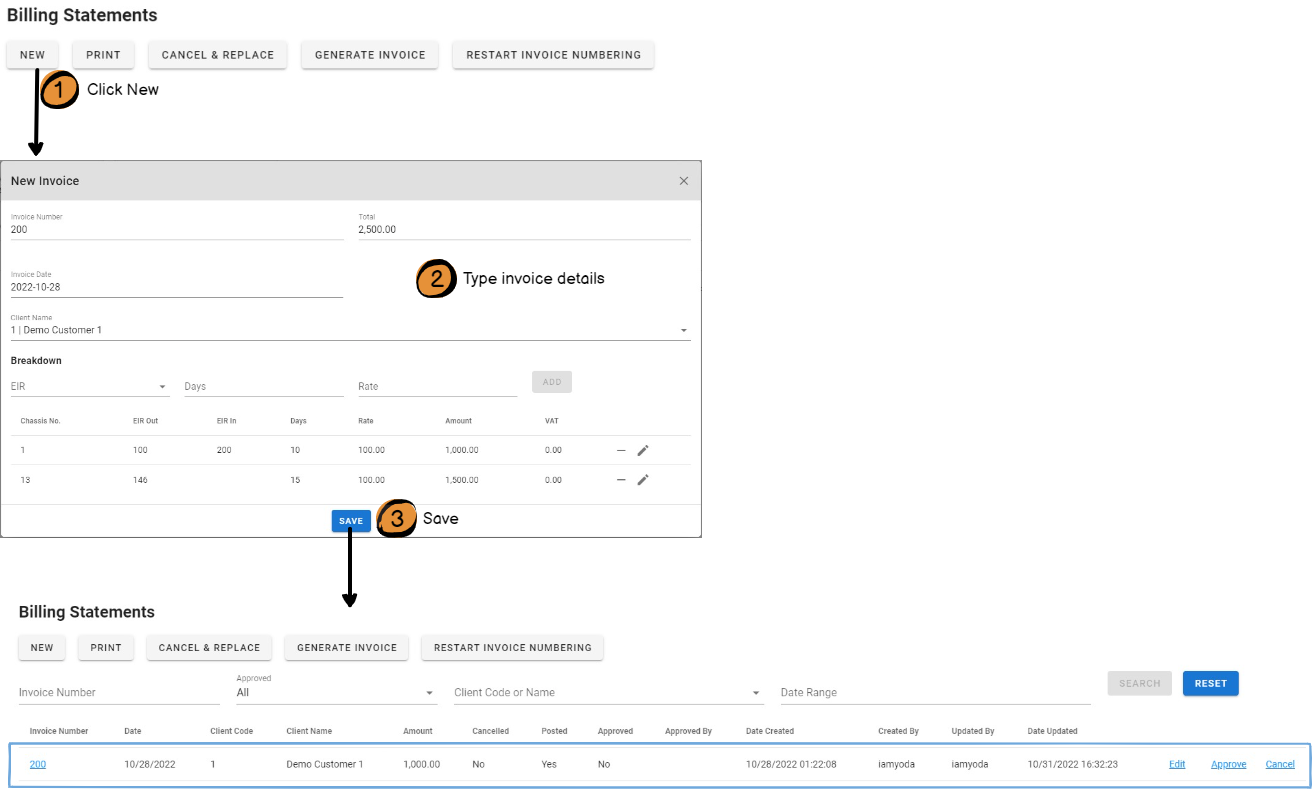
New Invoice Form
|
Field |
Description |
|
Invoice Number |
Number assigned to invoice. *Automatically filled with the next number after the last invoice number used. *Invoice number is shared between Billing Statements and Damage Claims. |
|
Invoice Date |
Date of the invoice. |
|
Client Name |
Name of the client to whom the invoice will be issued. |
|
Total |
Total billed amount. Formula: Total = Sum of all values in Amount column |
|
[Breakdown] EIR |
Select an EIR to bill. *If an EIR selected has a corresponding EIR Out or In, it will be automatically filled in the list. |
|
[Breakdown] Days |
Number of days to be billed. |
|
[Breakdown] Rate |
Rate applied per day. Automatically set based on the type of chassis in the EIR. |
After adding an item in Breakdown,
- system automatically computes Amount and VAT(if client is not tax-exempt).
- Total is also updated.
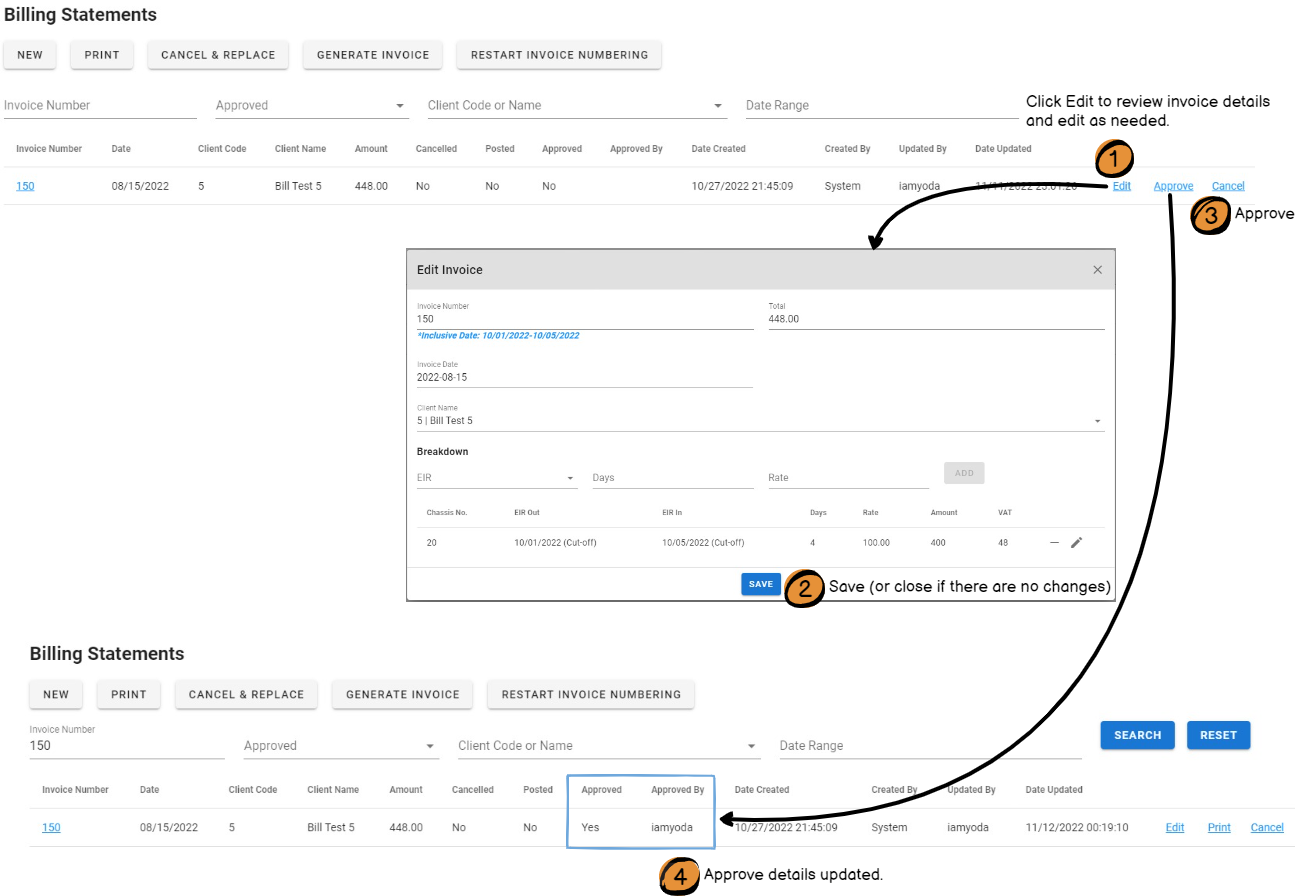
Approve a Billing Invoice
Approving an invoice means the encoded or system-generated data has been checked and is accurate.
Only approved invoices can be printed.
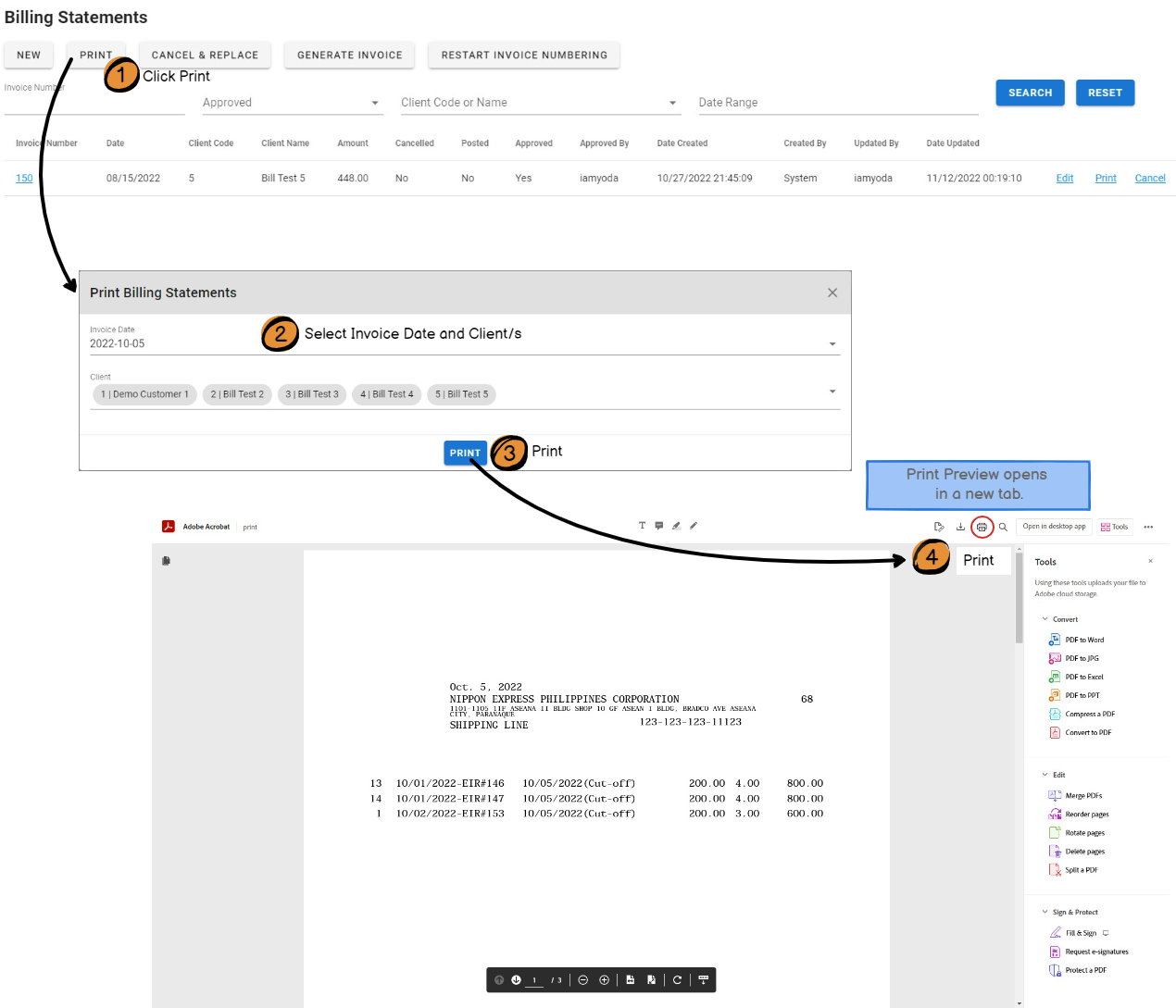
Print Billing Invoice
Bulk Print
Print many invoices.
*Only approved invoices will be printed.
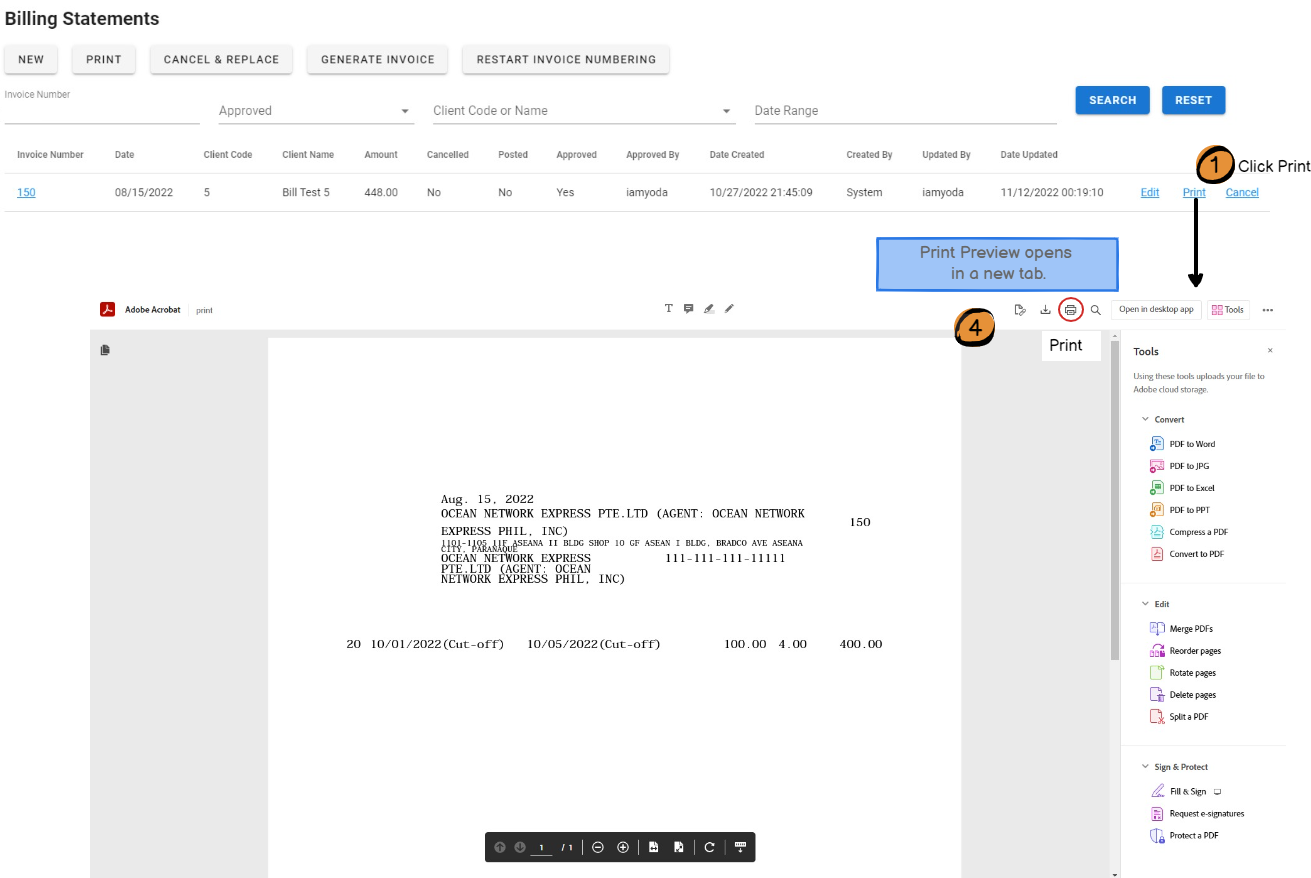
Individual Print
Print a client's invoice.
*Only approved invoices can be printed.
Cancel a Billing Invoice
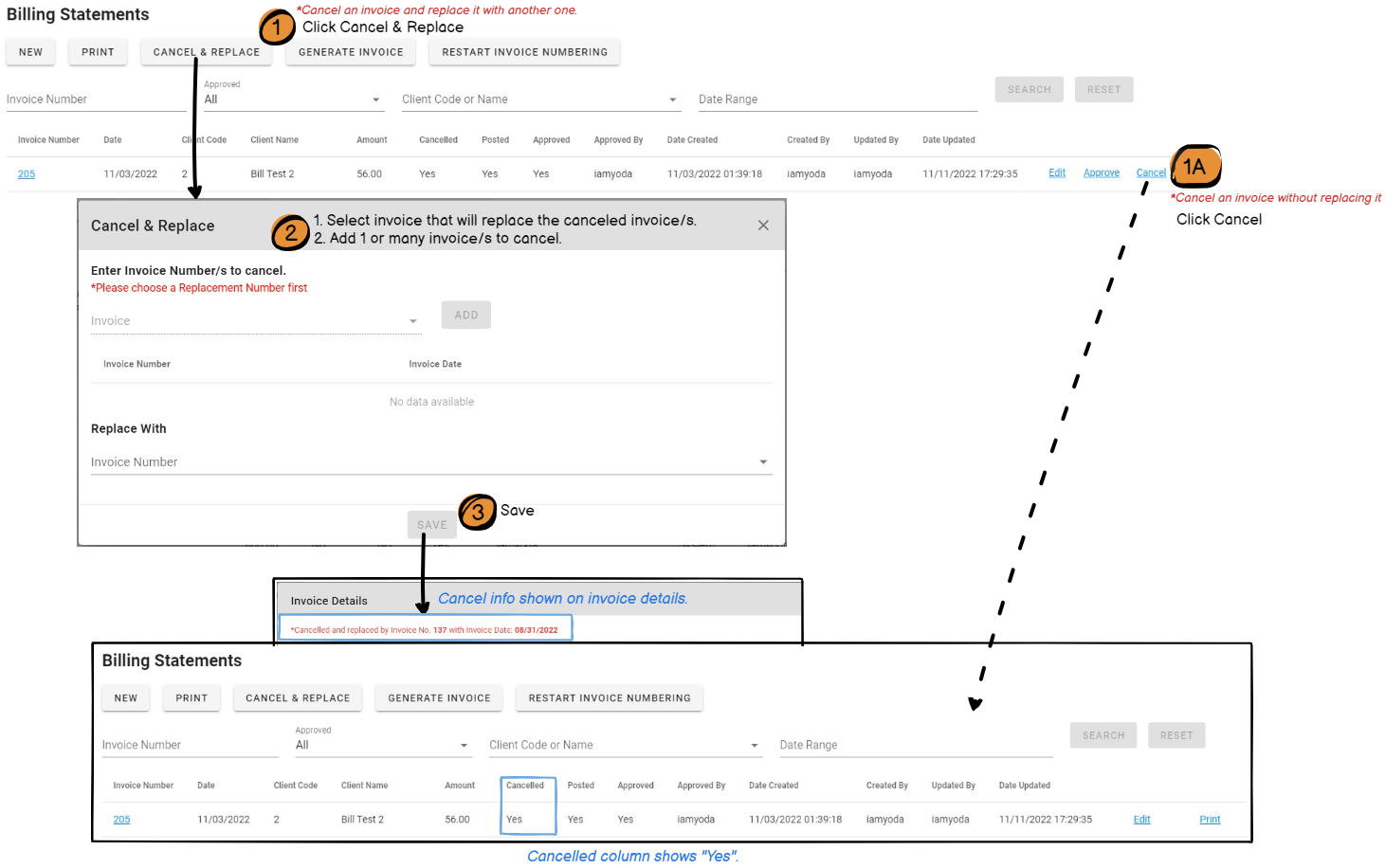
*Select new invoice first so that the system can determine list of invoices that it can cancel.
(Invoices must be from the same client.)
Restart Invoice Numbering
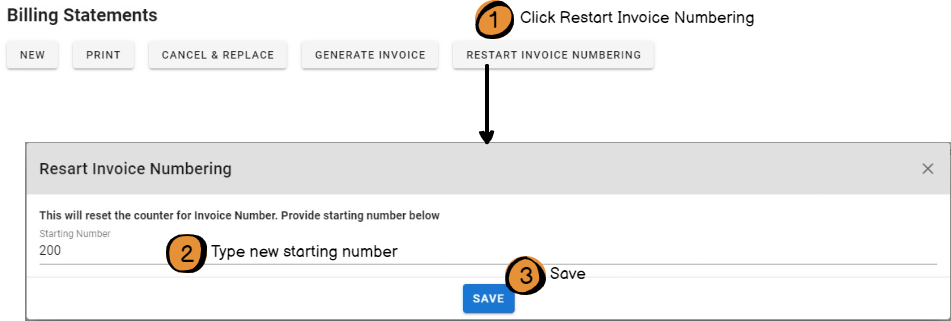
After saving, next invoice will be assigned the set starting number.
Damage Claims
Damage Claims are invoices generated based on repairs done on a damaged chassis that the client returned. These invoices are given to the clients to inform them of how much they owe for repairs on a chassis.
New Damage Claim Invoice
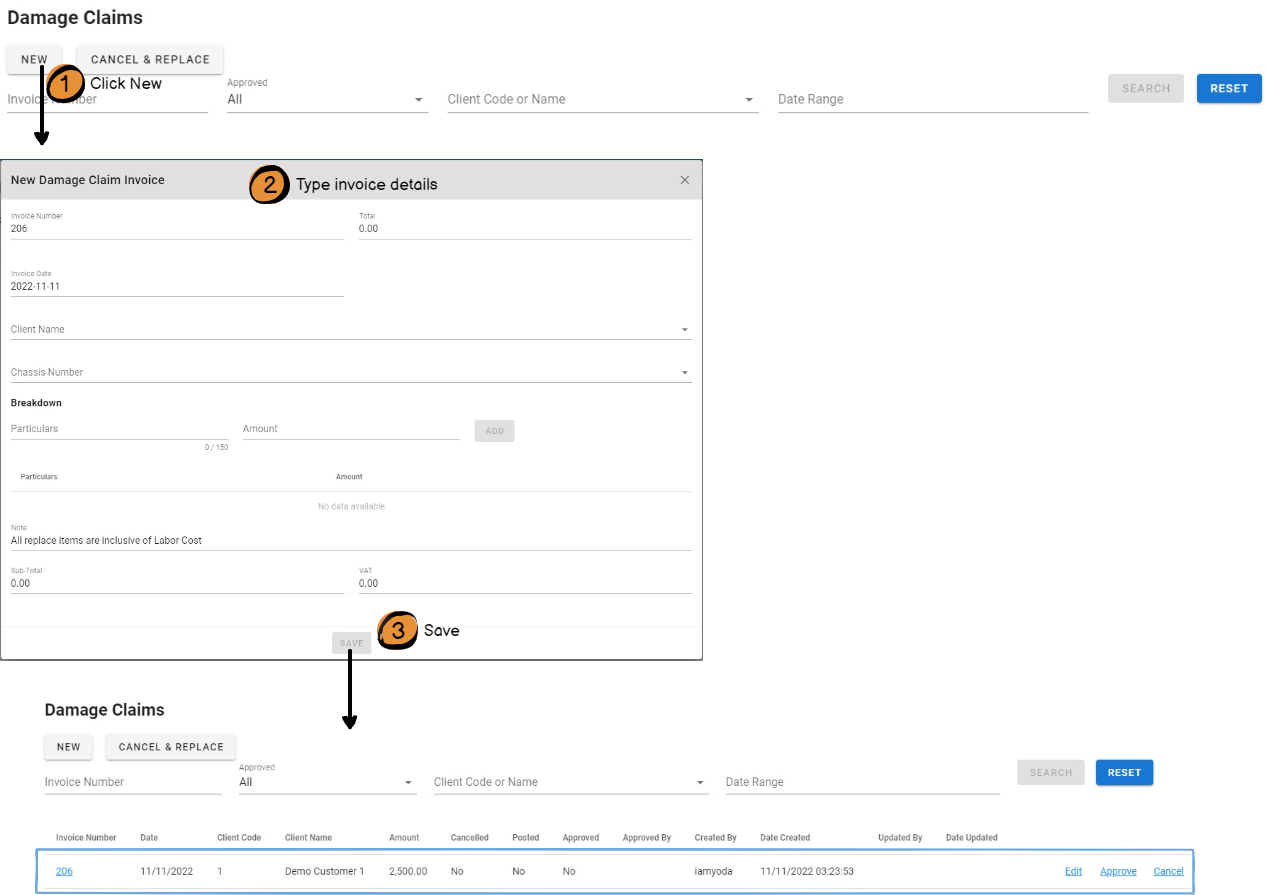
New Damage Claim Form
|
Field |
Description |
|
Invoice Number |
Number assigned to invoice. *Automatically filled with the next number after the last invoice number used. *Invoice number is shared between Billing Statements and Damage Claims. |
|
Invoice Date |
Date of the invoice. |
|
Client Name |
Name of the client to whom the invoice will be issued. |
|
Total |
Total billed amount. Formula: Total = Sub-Total + VAT |
|
[Breakdown] Particulars |
Description of item or repair to be charged. |
|
[Breakdown] Amount |
Amount to be charged. |
|
Note |
Additional notes to be printed at the bottom of the invoice. Default is "All replace items are inclusive of Labor Cost." This can be changed. |
|
Sub-Total |
Formula: Sum of all values in Amount column |
|
VAT |
Formula: Sub-Total * 0.12 *Computed if client is not tax-exempt. |
Approve a Damage Claim Invoice
Approving an invoice means the encoded data has been checked and is accurate.
Only approved invoices can be printed.
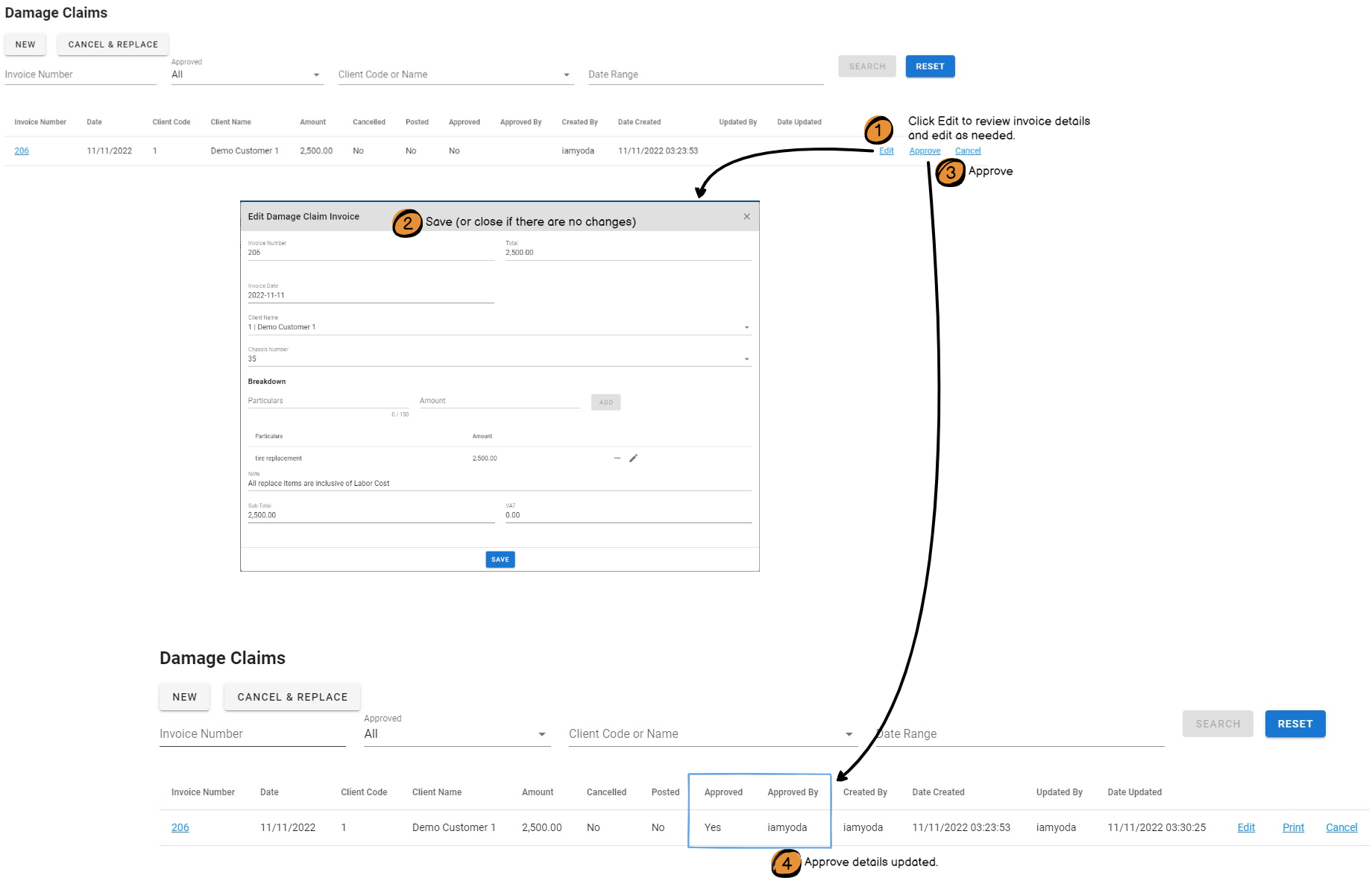
Print Damage Claim Invoice
Individual Print
Print a client's Damage Claim invoice.
*Only approved invoices can be printed.

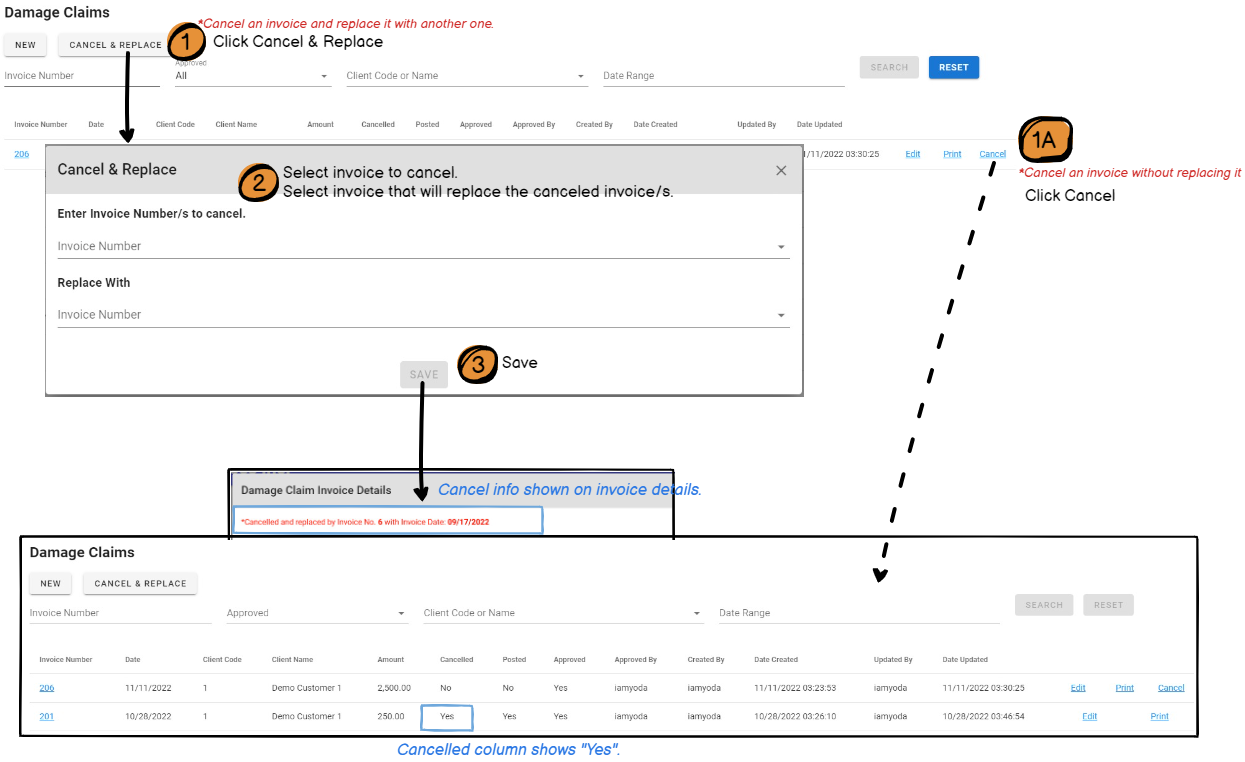
Cancel Damage Claim Invoice
Replacement of an invoice is allowed if both invoice:
- have the same chassis number, and
- they are from the same client
Payments Received
This is where official receipts (OR) can be encoded so that balance of invoices will be updated in the system.
Create a new OR
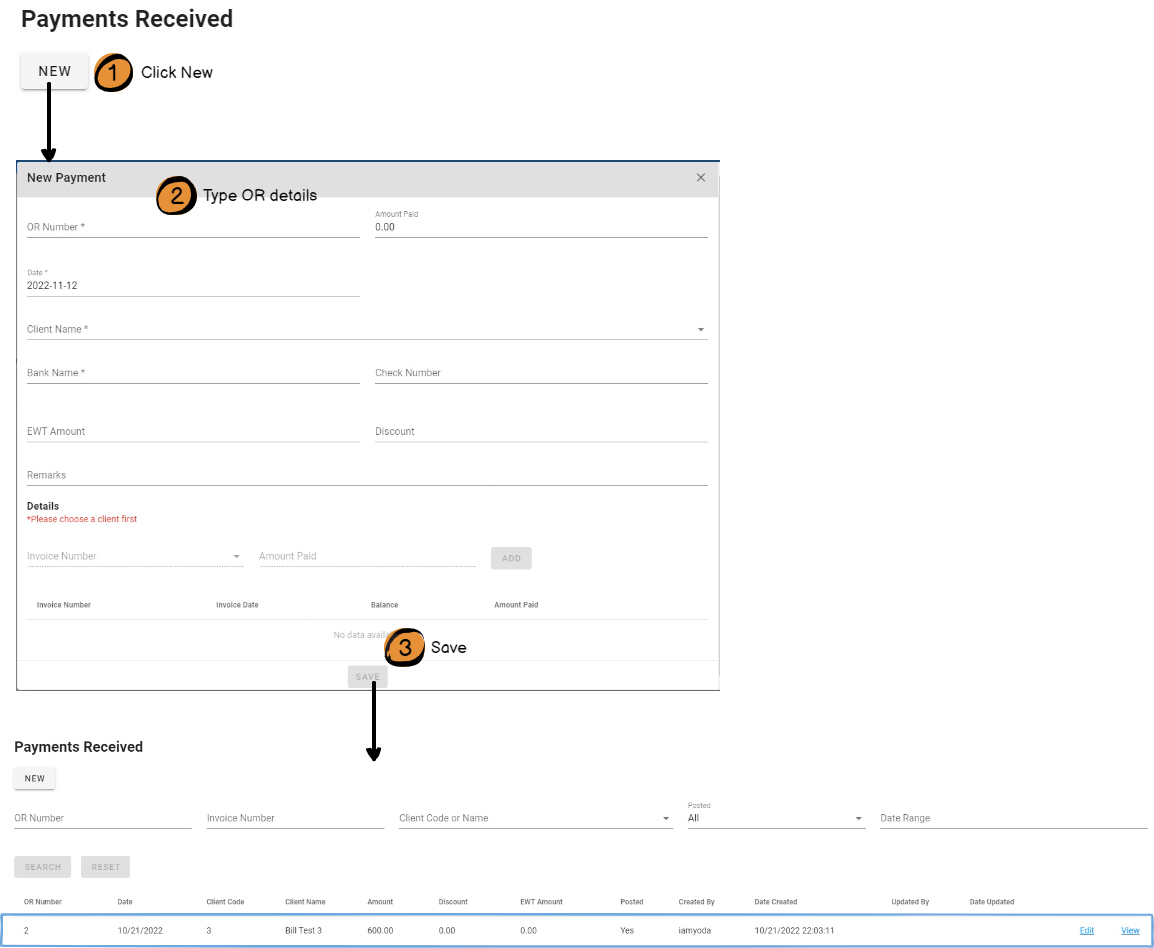
New Payment Form
|
Field |
Description |
|
OR Number |
Identifier in the issued Official Receipt. |
|
Amount Paid |
Sum of all values in the Details > Amount Paid column. |
|
Date |
Date in the issued Official Receipt. |
|
Client Name |
Name of the client who made the payment. |
|
Bank Name |
Name of the Bank where the payment is received. |
|
Check Number |
Identifier of the issued check, if the client paid by check. |
|
EWT Amount |
Amount to be withheld. (Expanded Withholding Tax) This is calculated based on the EWT Rate set in the client's record. Formula: EWT Rate (%) * Total Paid |
|
Discount |
Record the discount given to the client. |
|
Remarks |
Other notes about the payment. |
|
[Details] Invoice Number |
Select invoice number where the payment will be deducted from. |
|
[Details] Amount Paid |
Amount paid by the client. This will be deducted from the invoice balance. |
|
Summary Table |
|
|
Invoice Number |
Invoice Number where the payment will be deducted from. |
|
Invoice Date |
Date on the Invoice Number paid. |
|
Balance |
Unpaid amount on the Invoice Number. |
|
Amount Paid |
Amount received from the client as payment for the invoice. |
*After saving the payment received (OR), Invoice Balance will be updated.
See Client Balance for tracking of client's invoice balances.
Credit Memo
This is where credit memos given to clients are recorded. When a credit memo is given to a client, the amount on the credit note will be deducted from the balance of the specified invoice number.
Create a Credit Note

New Credit Note Form
|
Field |
Description |
|
CN Number |
Identifier for the issued Credit Note. *Only numbers allowed for input. |
|
Date |
Date in the issued Credit Note. |
|
Total |
Sum of all values in the Details > Amount column. |
|
Client Name |
Name of the client who was given the credit note. |
|
Description |
Notes about the given credit note. |
|
[Details] Invoice Number |
Select invoice number where the credit amount will be deducted from. |
|
[Details] Amount |
Amount of credit given. This will be deducted from the invoice balance. |
|
Summary Table |
|
|
Invoice Number |
Invoice Number where the credit amount will be deducted from. |
|
Invoice Date |
Date on the selected Invoice Number. |
|
Amount |
Amount of credit given. |
*After saving the credit note (CN), Invoice Balance will be updated.
See Client Balance for tracking of client's invoice balances.
Debit Memo
This is where debit memos given to clients are recorded. When a debit memo is given to a client, the amount on the debit note will be added to the balance of the specified invoice number.
Create a Debit Note
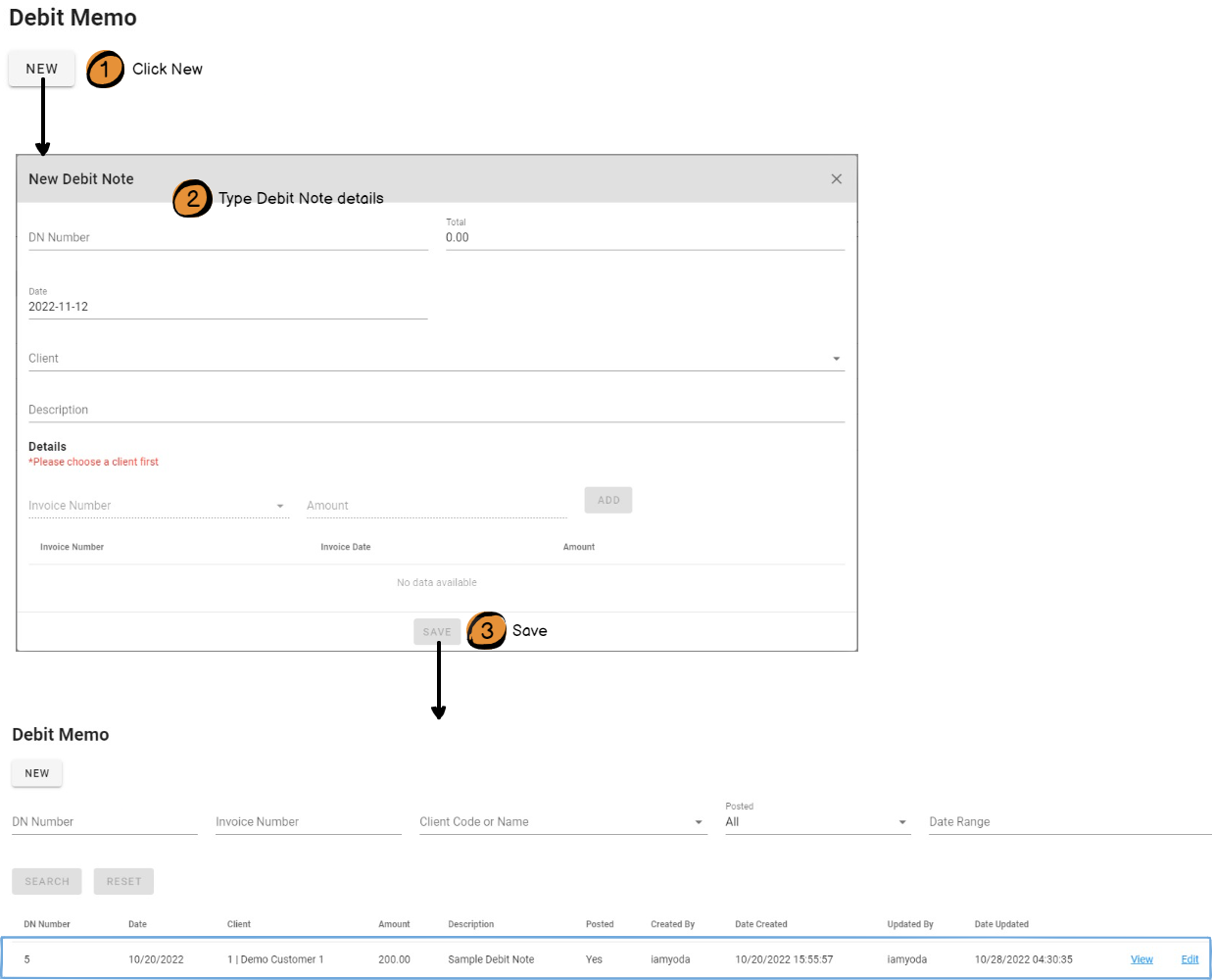
New Debit Note Form
|
Field |
Description |
|
DN Number |
Identifier for the issued Debit Note. *Only numbers allowed for input. |
|
Date |
Date in the issued Debit Note. |
|
Total |
Sum of all values in the Details > Amount column. |
|
Client Name |
Name of the client who is given the debit note. |
|
Description |
Notes about the debit note. |
|
[Details] Invoice Number |
Select invoice number where the debit amount will be added to. |
|
[Details] Amount |
Amount to debit. This will be added to the invoice balance. |
|
Summary Table |
|
|
Invoice Number |
Invoice Number where the debit amount will be added to. |
|
Invoice Date |
Date on the selected Invoice Number. |
|
Amount |
Amount to be added to the client's invoice. |
*After saving the debit note (DN), Invoice Balance will be updated.
See Client Balance for tracking of customer's invoice balances.
Track Invoices
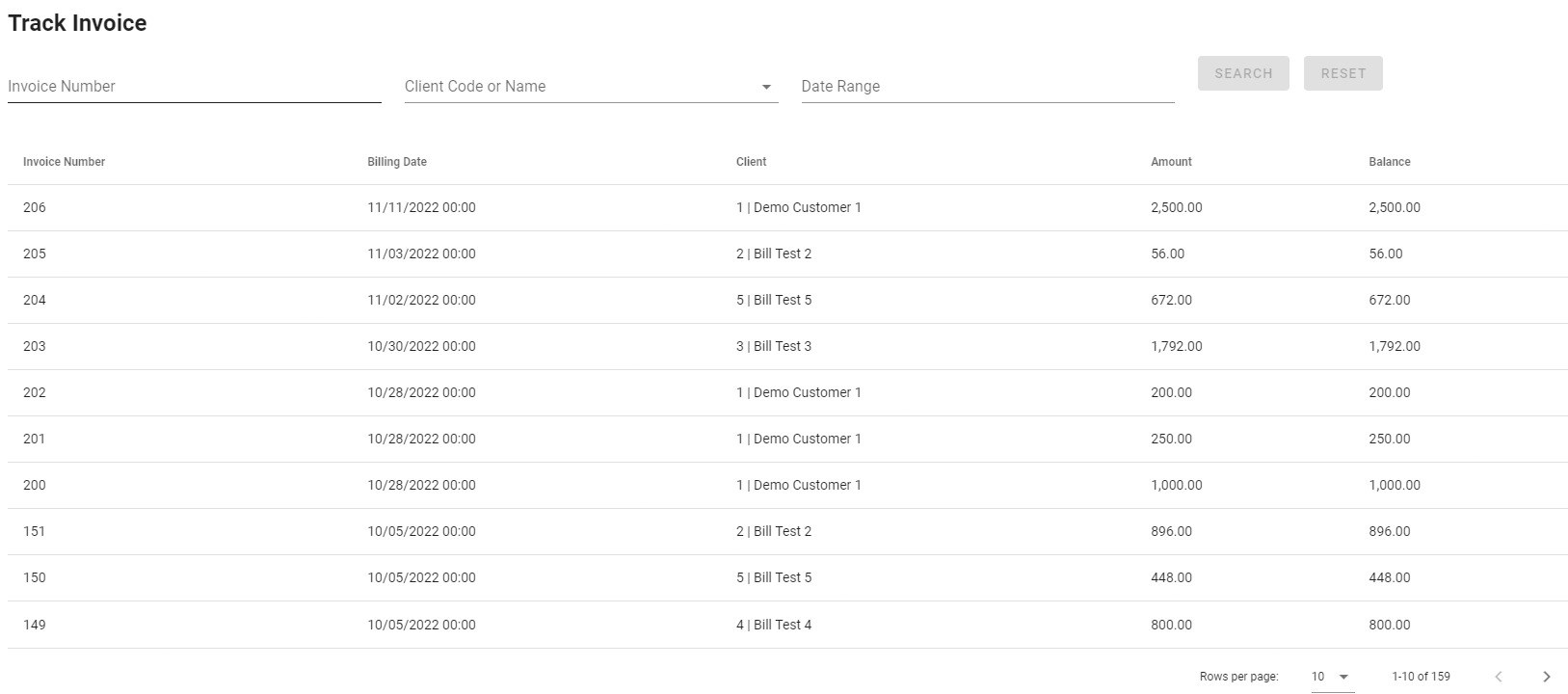
Default list contains all invoices (Billing Statements and Damage Claims) regardless of Approval or Cancellation status.
Look for an invoice by typing any of the following:
- Invoice Number
- Client Code or Client Name
- Date Range
- Tip: To select 1 day only, click the same date twice. (Example: Jan. 1, 2022 - Jan. 1, 2022)
|
Column Name |
Description |
|
Invoice Number |
Identifier of the invoice |
|
Billing Date |
Invoice Date |
|
Client |
Transaction-related Client Code and Name |
|
Amount |
Total amount on invoice |
|
Balance |
Remaining unpaid amount |
Reports
Accounts Receivable Aging
Summary of unpaid balances by Client Name and number of days the balance is unpaid.
Age Formula = Report Date - Invoice Date
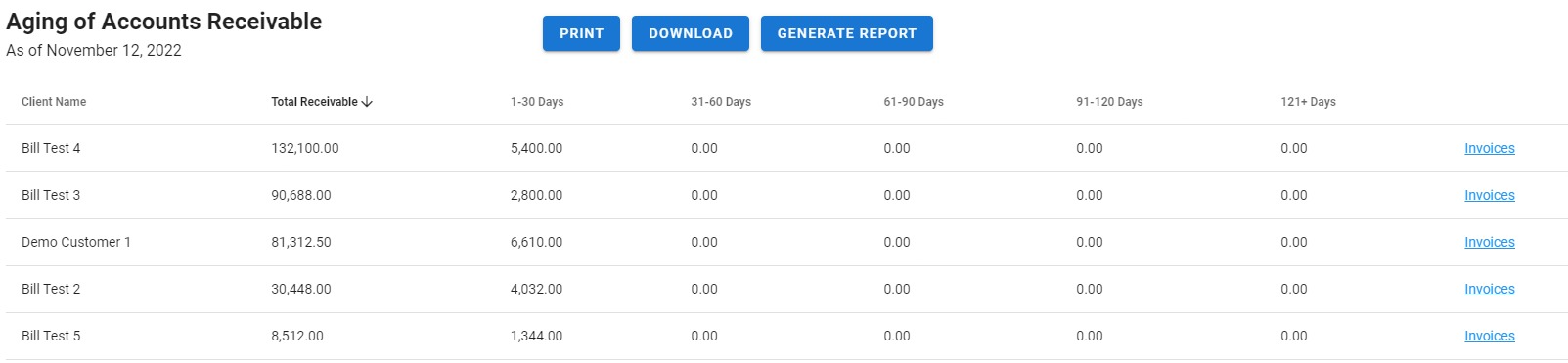
Generate Report
- Click "Generate Report" button to update displayed data.
- Only approved invoices will be included in the computation of balances.
- All transactions with Posted="No" status will be posted.
|
Summary Info |
Description |
|
Client Name |
Name of client |
|
Total Receivable |
Sum of all balances of the client |
|
1-30 Days |
Sum of all balances with age of 1-30 days |
|
31-60 Days |
Sum of all balances with age of 31-60 days |
|
61-90 Days |
Sum of all balances with age of 61-90 days |
|
91-120 Days |
Sum of all balances with age of 91-120 days |
|
121+ Days |
Sum of all balances with age of 121 or more days |
*Click "Invoices" to see breakdown of invoices with balance and its corresponding age.
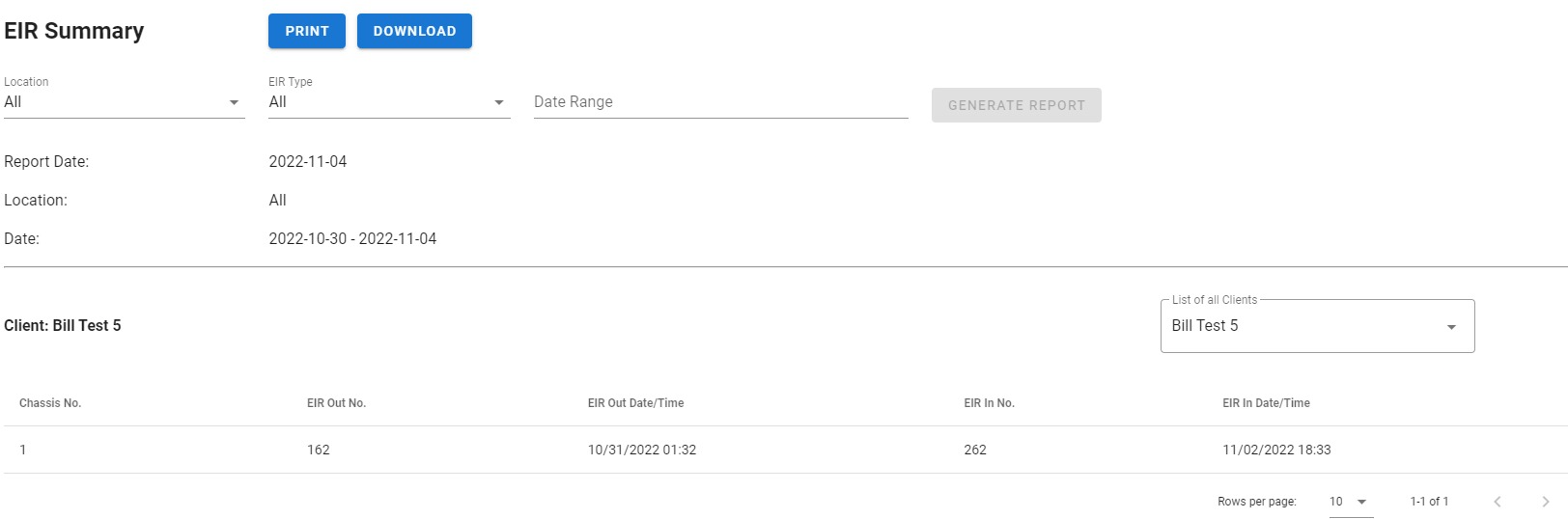
EIR Summary
Summary of client's transactions within a selected date range.
|
Summary Info. |
Description |
|
Client |
Name of client. |
|
Chassis No. |
Identifier of the rented chassis. |
|
EIR Out No. |
Identifying number on the EIR Out. |
|
EIR Out Date/Time |
Date and time on the EIR Out. |
|
EIR In No. |
Identifying number on the EIR In. |
|
EIR In Date/Time |
Date and time on the EIR In. |
* There will always be 1 line for the EIR Out transaction.
* There will be another line for a completed transaction. (EIR Out + EIR In)
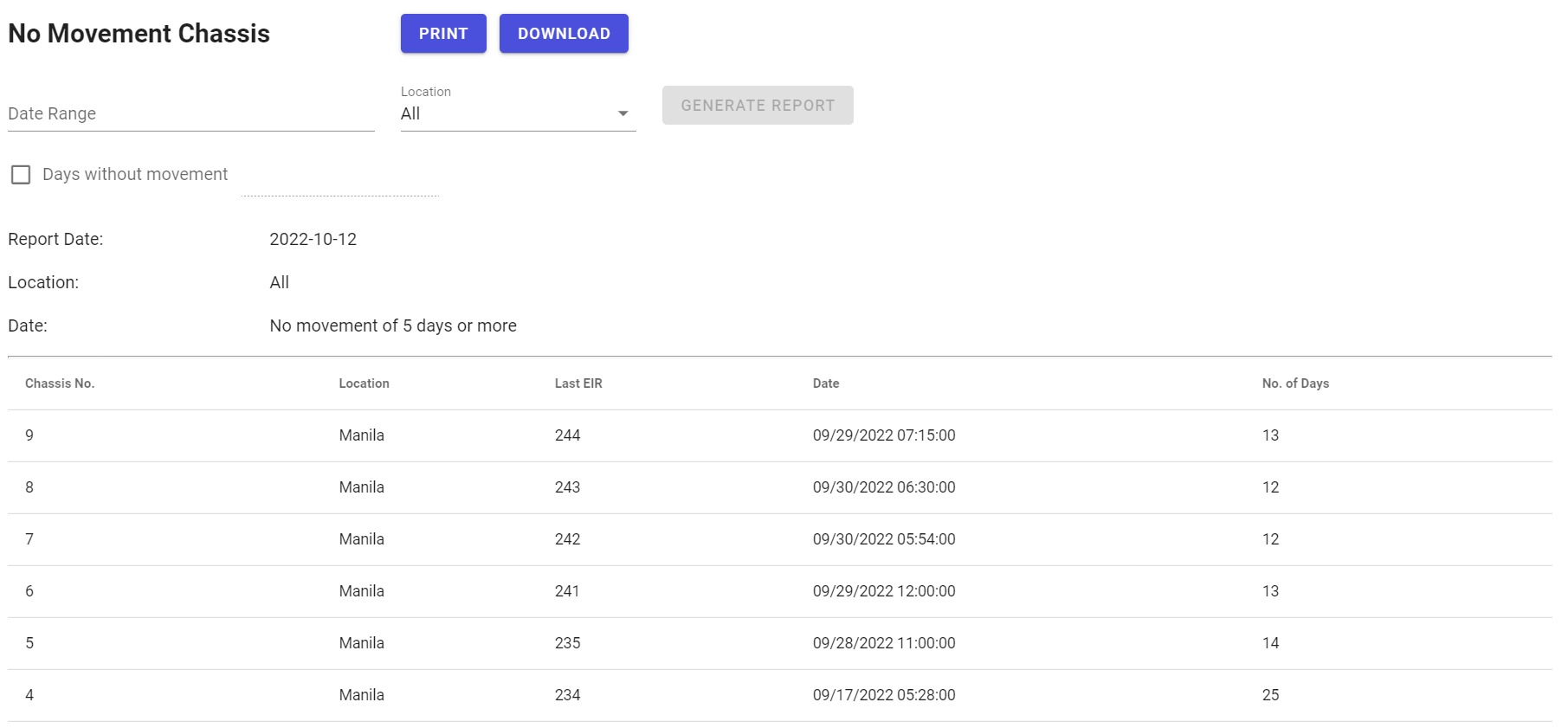
No Movement Chassis
Summary of chassis that are not rented out and are sitting in the depot/yard.
Report by Date Range
List of chassis which has not moved within a selected date range.
Included in the list are chassis with EIR In before the selected date range.
*EIR's after the selected date range is ignored.
Report Details:
Report Date - date the report is generated
Location - Depot location selected
Date - selected date range
|
Summary Info |
Description |
|
Chassis No. |
Chassis identifier. |
|
Location |
Depot where the chassis is. |
|
Last EIR |
Number of last EIR In |
|
Date |
Date and time on the last EIR In |
|
No. of Days |
Number of days it has been in the depot. Formula: Last date on selected date range - Date on last EIR In. |
Report by Days without Movement
List of chassis which has not moved for the last "n" number of days from the current date.
Report Details:
Report Date - date the report is generated
Location - Depot location selected
Date - "No movement of <n> days or more"
|
Summary Info |
Description |
|
Chassis No. |
Chassis identifier. |
|
Location |
Depot where the chassis is. |
|
Last EIR |
Number of last EIR In |
|
Date |
Date and time on the last EIR In |
|
No. of Days |
Number of days it has been in the depot. Formula: Current Date - Date on last EIR In. |
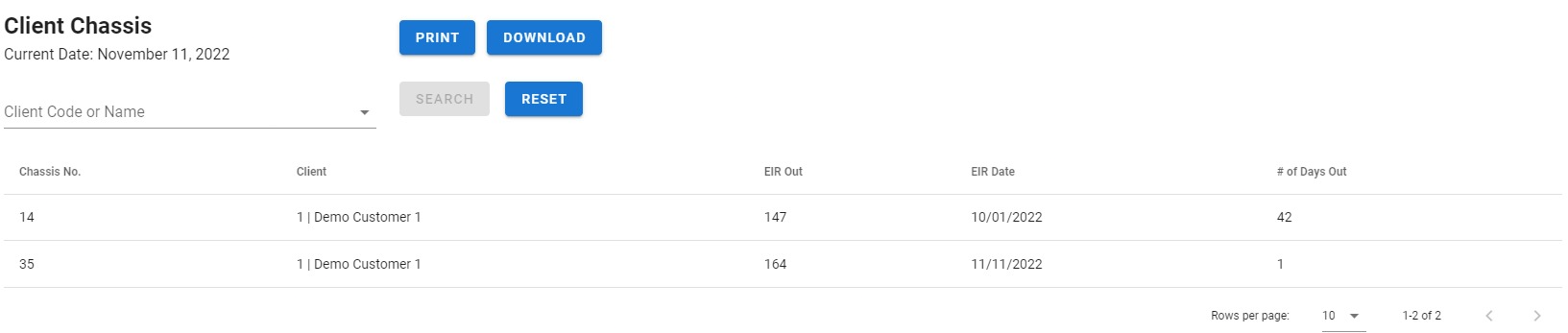
Client Chassis
Summary of chassis that are out with the client.
|
Summary Info. |
Description |
|
Chassis No. |
Identifier of the rented chassis. |
|
Client |
Code and Name of client who has the chassis. |
|
EIR Out |
Number on the EIR Out. |
|
EIR Date |
Date on the EIR Out. |
|
# of Days Out |
Number of days the chassis has been with the customer. Formula: Report Date - EIR Date |